Starter
For freelancers and small teams.
$ 24 /mo
Billed monthly · cancel anytime
Platforms3
Accounts10
.svg) Google Search Console query · Power BI format
Google Search Console query · Power BI format
 Google Search Console
One source
Google Search Console
One source
 Saved query
API URL
Power BI
Web · Import
Saved query
API URL
Power BI
Web · Import
Used by the world's leading companies









Available metrics
Available dimensions
Google Search Console
3 advertising accounts
Connected
 Google Ads
2 advertising accounts
Connected
Google Ads
2 advertising accounts
Connected
 Google Analytics 4
1 web property
Connected
Google Analytics 4
1 web property
Connected
 HubSpot
1 CRM portal
Connected
HubSpot
1 CRM portal
Connected

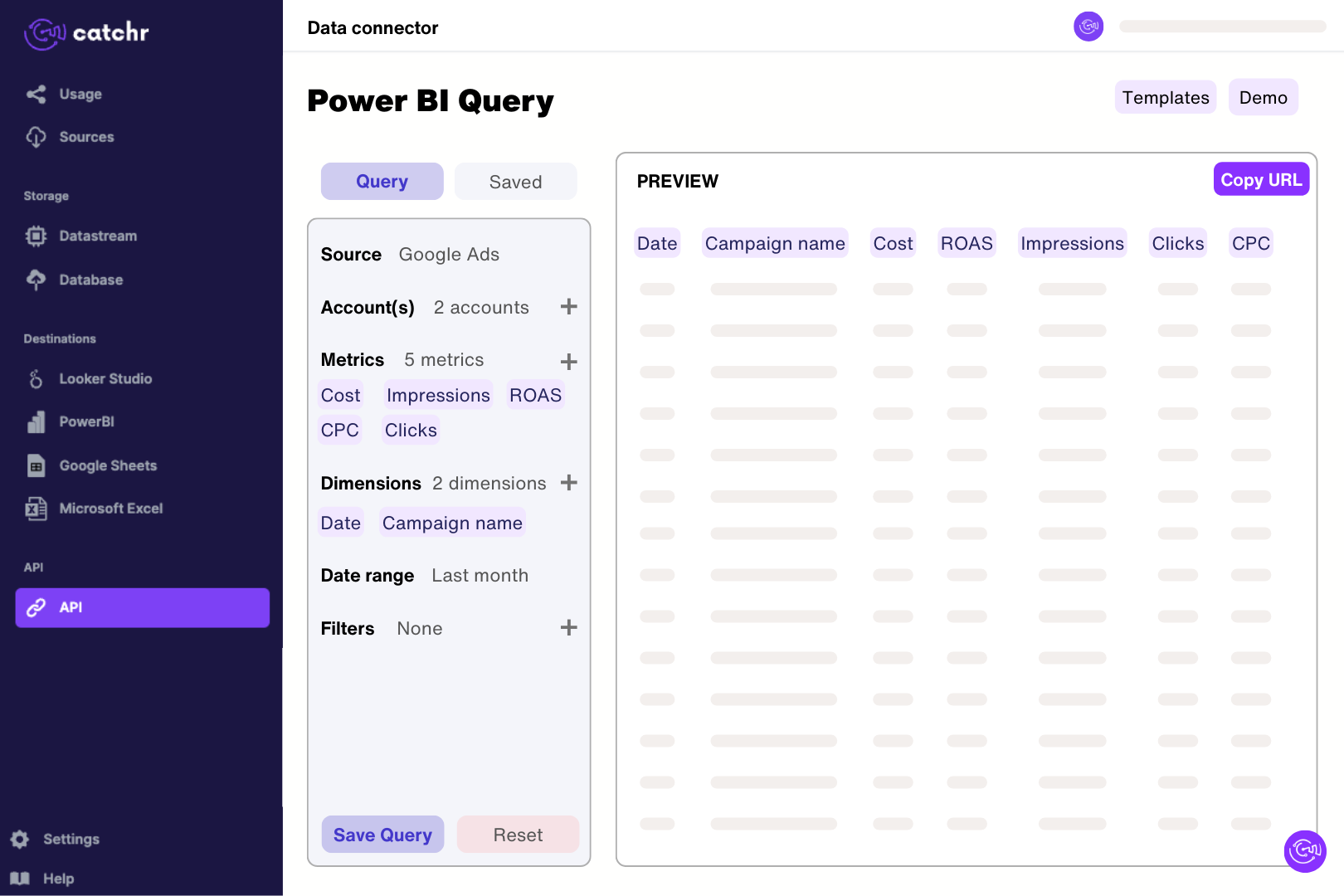
Authorize Catchr with a Google account that can access the Search Console property. In Catchr’s Power BI query builder, select clicks and impressions by date and preview a short extraction. Import the generated URL through Get data > Web in Power BI Desktop. Check the returned rows before building measures, keeping property, search type and the distinction between property totals and query rows clear in the model.
Yes. Google provides a native Search Console connector. Catchr is another option when you want to manage Search Console alongside your other marketing connections. Choose based on the properties, fields and reporting workflow you need; you do not need a paid connector simply to create a basic Search Console dashboard.
Check whether both reports aggregate by property or by page. A search that displays several URLs from the same site can be counted differently at those levels. Also match the property, search type, dates and filters. Comparing a page-level table with a property-level total can produce a difference even when neither report is broken.
Google withholds some queries for privacy, and the Search Analytics API does not guarantee every row. Adding a query dimension or query filter can therefore change the totals. Use an unfiltered summary for overall search performance and the query table to analyze the terms Google makes available.
Yes. Catchr exposes Search Console breakdowns for pages, queries, countries and devices. Start with a page table sorted by clicks, then separate mobile and desktop or focus on a target country. Keep the same dimensions and filters when comparing periods so a change in the report setup does not look like a change in SEO performance.
Yes. Add Google Analytics to compare search visibility with activity after a visitor reaches your site. Search Console clicks and GA4 sessions measure different things, so they should not be expected to match. For a page-level comparison, align landing-page URLs and dates before creating relationships the sources.
Check which Google account you authorized and whether it has access to the exact Search Console property. A Domain property and an HTTPS URL-prefix property are different selections. If access was recently added or changed, reconnect the Google authorization and select the property again.
Yes. Catchr requests Search Console data including fresh data when Google makes it available. Recent dates can be incomplete and revised. Treat the latest days as provisional and use a completed comparison period for client reporting; refreshing a chart cannot make Google finish processing sooner.
Our team is always here to answer any questions you may have about our data connector.
Connect your marketing platforms and build a data workflow your entire agency can use.





.svg)

























.png)




.svg)