Starter
For freelancers and small teams.
$ 24 /mo
Billed monthly · cancel anytime
Platforms3
Accounts10
.svg) Google Analytics query · Power BI format
Google Analytics query · Power BI format
 Google Analytics
One source
Google Analytics
One source
 Saved query
API URL
Power BI
Web · Import
Saved query
API URL
Power BI
Web · Import
Used by the world's leading companies









Available metrics
Available dimensions
Google Analytics
3 advertising accounts
Connected
 Google Ads
2 advertising accounts
Connected
Google Ads
2 advertising accounts
Connected
 Google Analytics 4
1 web property
Connected
Google Analytics 4
1 web property
Connected
 HubSpot
1 CRM portal
Connected
HubSpot
1 CRM portal
Connected

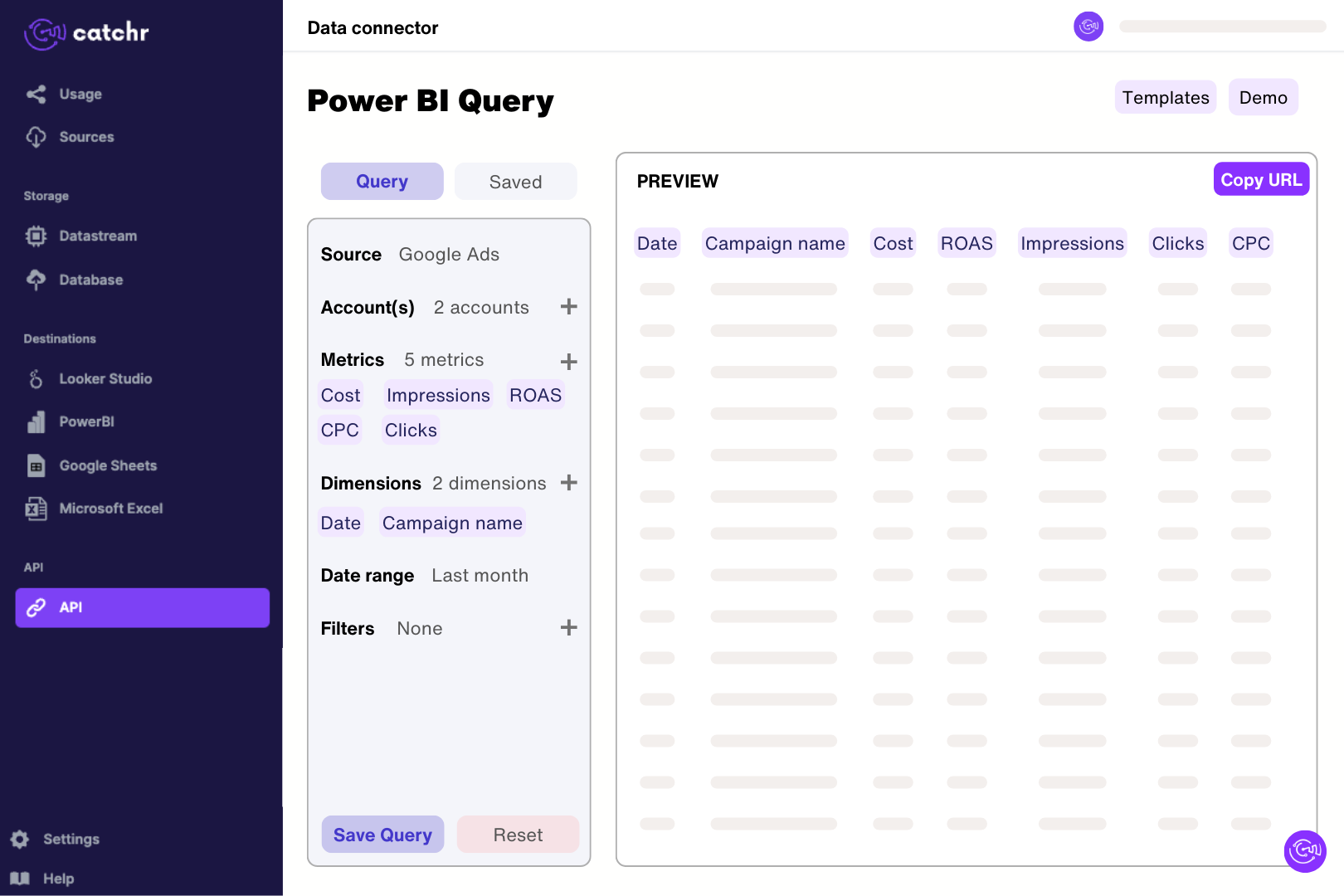
Authorize Catchr with a Google user who can access the GA4 property and select that property. In Catchr’s Power BI query builder, select sessions and engagement by date and preview a short extraction. Import the generated URL through Get data > Web in Power BI Desktop. Check the returned rows before building measures, keeping property and compatible session, event and user dimensions clear in the model.
Yes. Microsoft provides a Google Analytics connector in Power Query with GA4 support. Catchr offers another route when managing analytics alongside advertising and other sources fits your workflow. Compare the required fields, account setup and reporting behavior. Both routes still depend on the analytics data made available by Google; neither automatically reproduces every Exploration.
Use sessions to measure visits, engaged sessions to assess visit quality, and revenue where ecommerce tracking is configured. Pair those with session source and medium for a visit-based acquisition view. Active users answer a different question: how many distinct active people were measured. Catchr's GA4 fields include these metrics and session-level traffic-source dimensions.
A person who visits on several days can appear in each daily count but only once in a distinct-user total for the whole period. Adding daily user counts therefore does not produce the period's unique users. Keep a separate scorecard for the full date range and use the daily chart to show the trend.
Align the property, dates, filters, metric definition and dimension scope. Catchr retrieves reporting data, while an Exploration can use a different configuration or population. Compare sessions with sessions and active users with active users, and inspect the rows before adding DAX measures or relationships. A one-to-many join or a sum of daily unique users can introduce an additional difference inside the Power BI model.
No connector can promise to bypass Google's property-level API quotas. Complex requests, many charts and frequent reloads can consume the available allowance. Reduce unnecessary charts and long date ranges, reuse data sources where practical and allow exhausted quotas to recover. A connector subscription and Google's API capacity are separate constraints.
Yes. Add Google Ads or your other advertising sources to the report. Agree on campaign naming, dates and currency before creating relationships. Use the result to compare acquisition cost with website outcomes, while keeping GA4 attribution distinct from the conversions each advertising platform claims.
Use session source when you want to explain which channel brought a visit. Use first user source when you want to describe how a user was first acquired. These answer different questions, so give charts clear titles and avoid swapping one dimension for the other when comparing campaign performance.
Our team is always here to answer any questions you may have about our data connector.
Connect your marketing platforms and build a data workflow your entire agency can use.





.svg)




























.png)




.svg)