Build a query in the Catchr Office add-in, choose its starting cell, and write source rows into the workbook where your formulas, pivots, and reporting already live.
 Q3_Marketing_Command_Center.xlsx
Used by the world's leading companies








Import data from Meta Ads, Google Ads, LinkedIn Ads, GA4, Shopify, HubSpot and more directly in Microsoft Excel without exporting a single CSV.
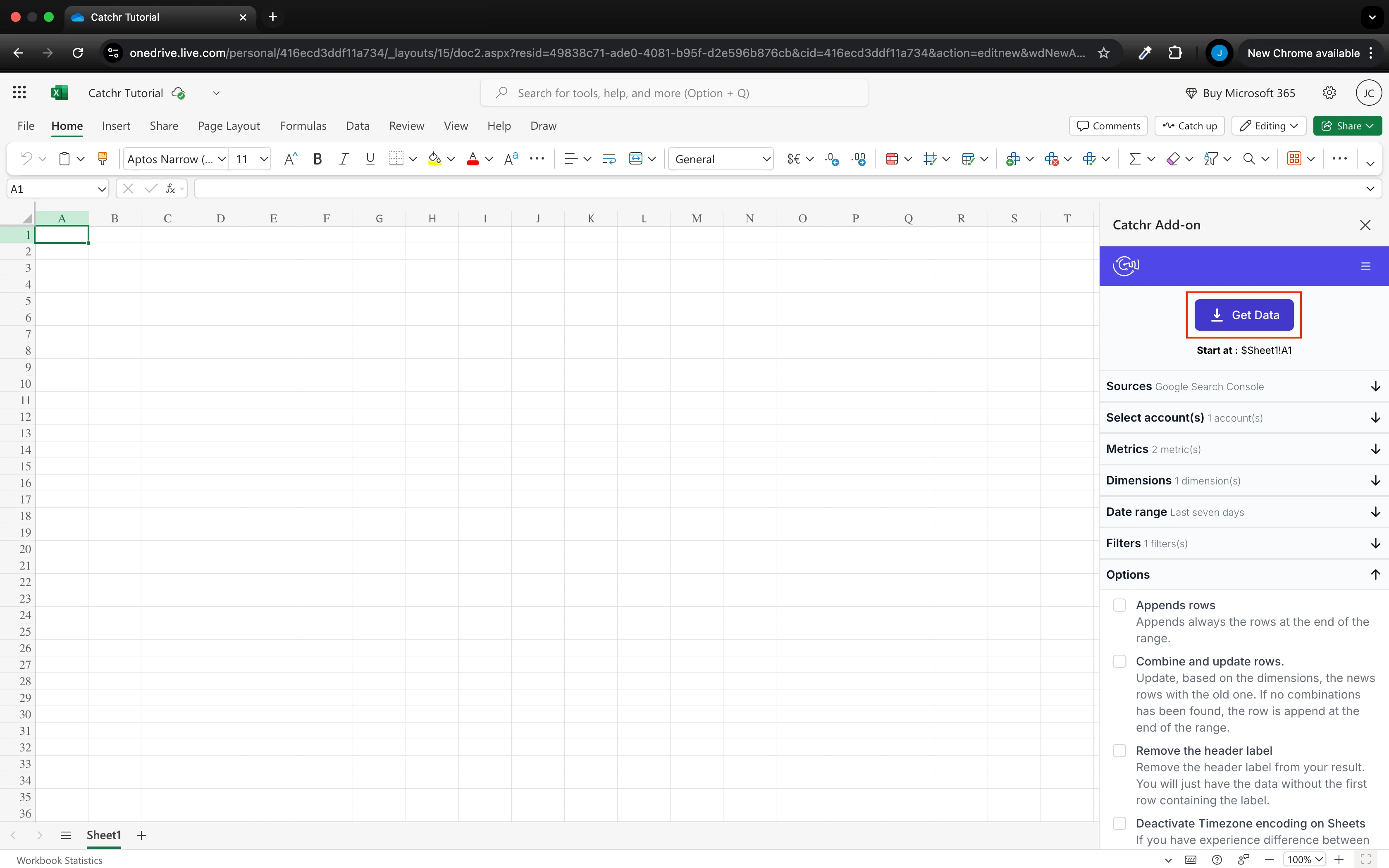
Use the docked Catchr task pane to select a source, one or more accounts, the exact fields, date range, and available filters.
Once connected, your excel spreadsheet refresh automatically.
A saved query knows its output range. Choose the update behavior that matches how the workbook should accumulate or reconcile rows.
Start with a dedicated connection page for the platform you use. Each route explains the source data, useful fields, query setup, and workbook applications for that connector.
Configure the source once, then build and rerun focused queries from the Excel add-in whenever your workbook needs new rows.
Authenticate all the platforms used, then choose the exact accounts your team needs for reporting and analysis.
 Meta Ads
3 advertising accounts
Connected
Meta Ads
3 advertising accounts
Connected
 Google Ads
2 advertising accounts
Connected
Google Ads
2 advertising accounts
Connected
 Google Analytics 4
1 web property
Connected
Google Analytics 4
1 web property
Connected
 HubSpot
1 CRM portal
Connected
HubSpot
1 CRM portal
Connected
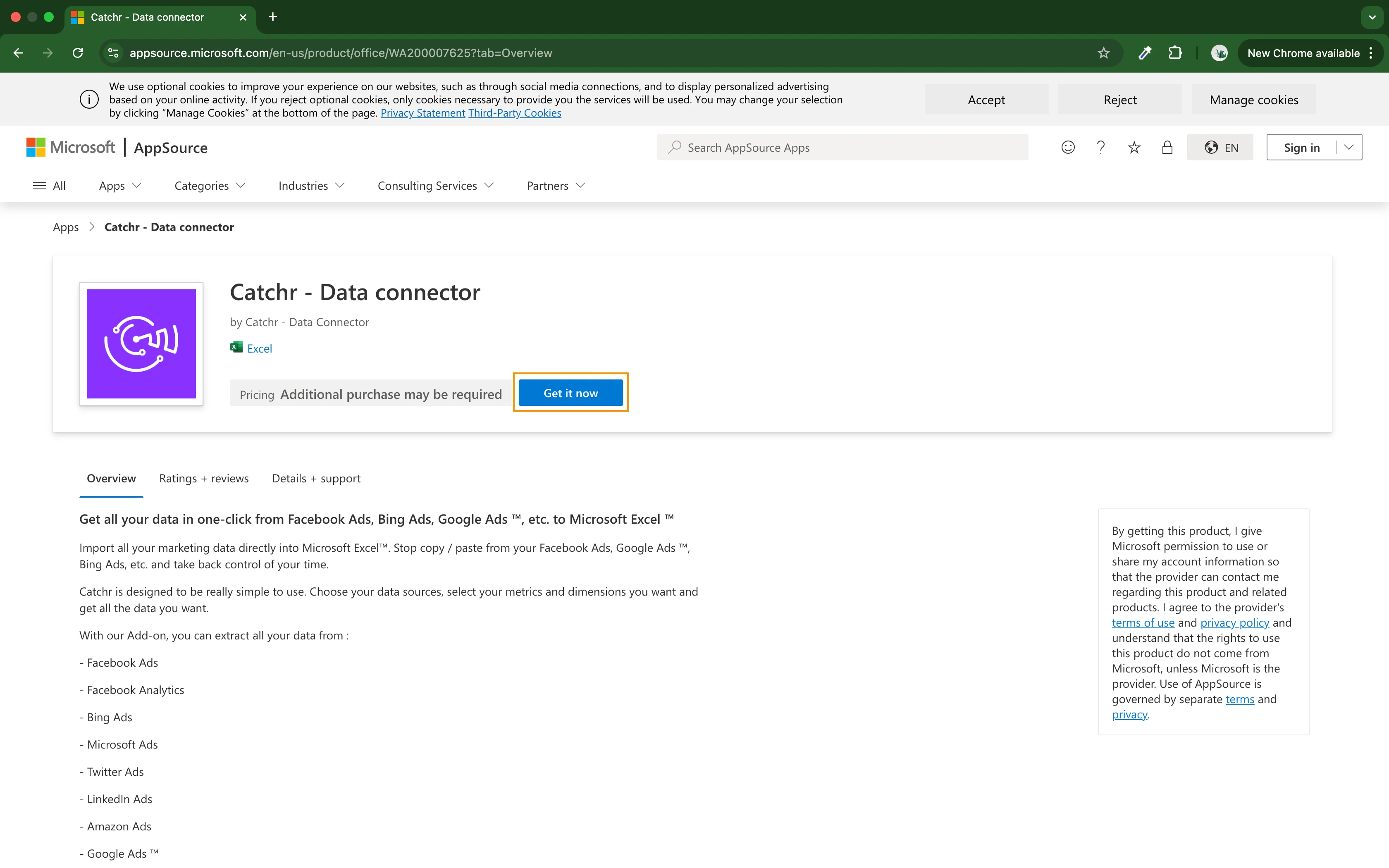
Install Catchr from Microsoft Marketplace, open the task pane in Excel for web or desktop, then sign in to your Catchr workspace.
Choose the source, accounts, fields, dates, and filters. Select the starting cell in a dedicated raw-data sheet, then use Get Data to write the response.
What our customers say about us.
After three years of use, Catchr has become essential for both our teams and our clients. So far, it has been our best solution for compiling and analyzing data from different advertising platforms. It’s easy to set up, and the customer service is responsive and excellent.

With Catchr’s automated API, we can finally collect and centralize all advertising data, connect it with booking information, and calculate the real ROAS for our restaurant clients. It gives them full visibility, more autonomy, and the ability to optimize campaigns to maximize ROI.

The solution is a real game changer, providing optimal time savings for our data reporting. The major strength of the solution is their highly responsive and professional support.

Clear answers about source connections, workbook behavior, saved queries, and refreshes.
Catchr's Excel connector is an Office add-in that lets you build a marketing-data query inside a workbook. You choose the source, accounts, fields, date range, filters, and output location; Catchr writes the returned rows to the selected workbook range.
Connect a marketing source in Catchr, install the Catchr add-in from Microsoft Marketplace, open it in Excel, select a starting cell, configure the query, and choose Get Data.
Yes. Catchr's setup guide supports the add-in in Excel for web and in the desktop application. Your Microsoft environment must allow Office add-ins.
Yes. A query uses one marketing source, and you can select one or more accounts from that source. To use another source, create another query and write it to its own range or sheet.
Catchr starts at the cell you select and stores the saved query against its workbook range. A dedicated raw-data sheet is the safest place for query output.
Replace clears the previous output and writes the new response. Append adds rows after the existing range. Combine and update matches rows using selected dimensions, updates matches, and adds new rows.
Yes. Excel remains responsible for formulas, pivots, charts, workbook logic, and sharing. Keep formulas and manual inputs outside the stored query output range so an update does not overwrite them.
Our teams is always here to responds to any question you could have about our data connector.
Install Catchr for Excel and give your reporting workflow a repeatable data input.






.svg)



































.svg)



.png)