Starter
For freelancers and small teams.
$ 24 /mo
Billed monthly · cancel anytime
Platforms3
Accounts10
.svg) Apple Search Ads query · Power BI format
Apple Search Ads query · Power BI format
.svg) Apple Search Ads
One source
Apple Search Ads
One source
 Saved query
API URL
Power BI
Web · Import
Saved query
API URL
Power BI
Web · Import
Used by the world's leading companies









Available metrics
Available dimensions
Apple Search Ads
3 advertising accounts
Connected
 Google Ads
2 advertising accounts
Connected
Google Ads
2 advertising accounts
Connected
 Google Analytics 4
1 web property
Connected
Google Analytics 4
1 web property
Connected
 HubSpot
1 CRM portal
Connected
HubSpot
1 CRM portal
Connected

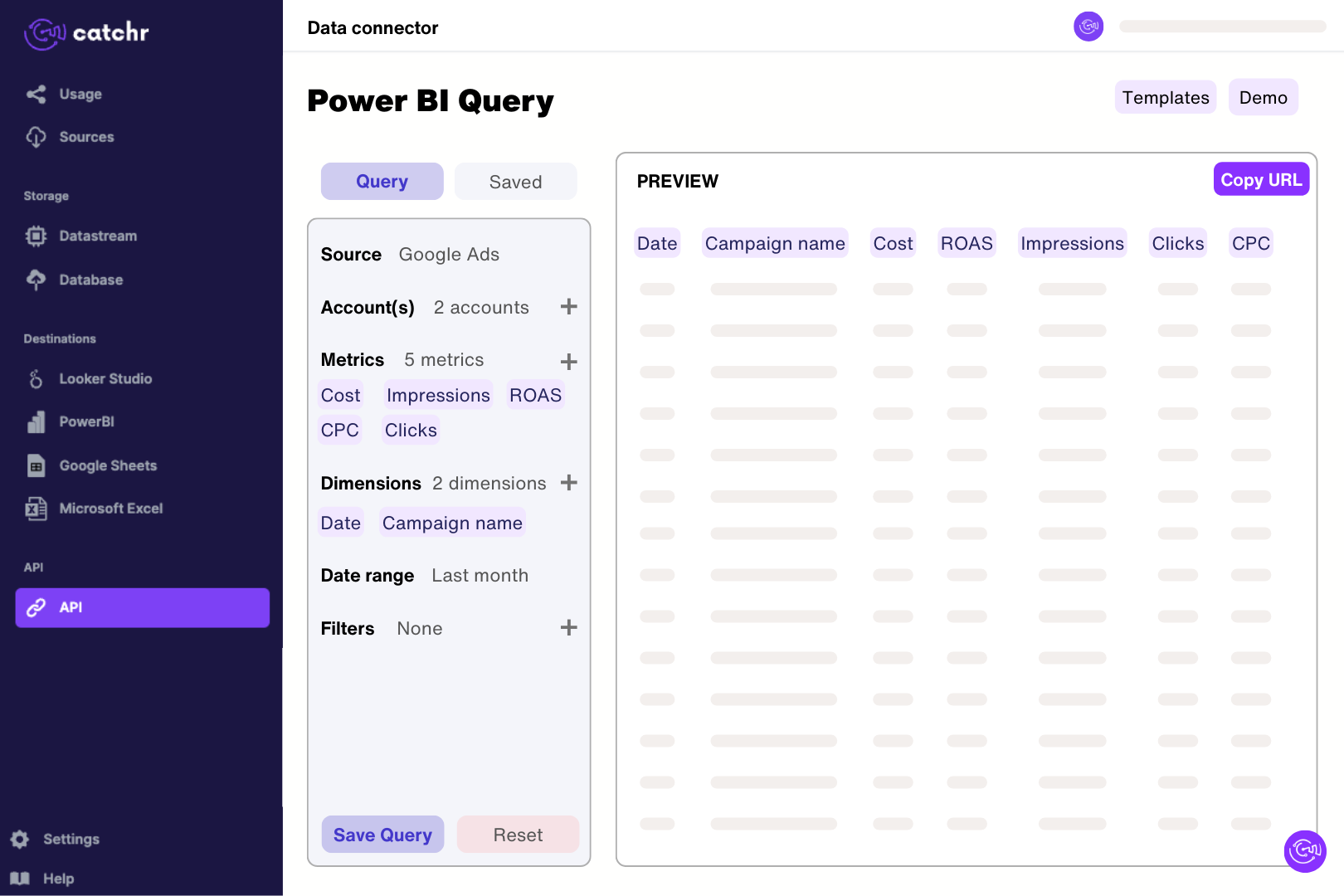
Register the public key supplied by Catchr in Apple Ads, then enter the Client ID, Team ID and Key ID in Catchr. In Catchr’s Power BI query builder, select campaign delivery and installation metrics and preview a short extraction. Import the generated URL through Get data > Web in Power BI Desktop. Check the returned rows before building measures, keeping app, reporting currency and the selected install attribution measure clear in the model.
Catchr exposes impressions, taps, spend, tap-through rate, cost per tap, cost per acquisition, and download metrics. Campaign, ad-group, ad, and keyword information helps explain performance. Use compatible fields for the reporting level you choose and keep the spend currency visible when comparing accounts.
Installs can include both new downloads and redownloads. New-download metrics isolate downloads classified as new, while redownload metrics describe users downloading an app they previously installed. Use the metric appropriate to acquisition or re-engagement, and keep the attribution basis consistent across the comparison.
Total installs include tap-through and view-through downloads, while the tap-through measure covers installs attributed to ad taps. Catchr also exposes view-install fields. Do not add total installs to its component metrics, and match the same install definition when comparing cost per install with the Apple Ads interface.
Catchr exposes keyword reporting fields and the ad-group setting that indicates whether Search Match is enabled. Use these to organize keyword and ad-group analysis, but do not assume that a setting proves which search query produced every install. Keep campaign and ad-group IDs in your analysis when names are reused.
Divide total spend by total taps, using a consistent currency. An unweighted average of campaign-level cost-per-tap values gives small campaigns the same influence as large ones. Apply the same principle to install costs: choose the intended install metric and divide the corresponding spend by that total.
Yes. Add App Store Connect to compare advertising delivery with broader app performance. Align apps, countries, dates, and download definitions. App-store totals include activity beyond paid acquisition, so they should not be expected to equal ad-attributed installs.
Our team is always here to answer any questions you may have about our data connector.
Connect your marketing platforms and build a data workflow your entire agency can use.





.svg)




























.png)