Starter
For freelancers and small teams.
$ 24 /mo
Billed monthly · cancel anytime
Platforms3
Accounts10
.svg) Bigcommerce query · Power BI format
Bigcommerce query · Power BI format
 Bigcommerce
One source
Bigcommerce
One source
 Saved query
API URL
Power BI
Web · Import
Saved query
API URL
Power BI
Web · Import
Used by the world's leading companies









Available metrics
Available dimensions
Bigcommerce
3 advertising accounts
Connected
 Google Ads
2 advertising accounts
Connected
Google Ads
2 advertising accounts
Connected
 Google Analytics 4
1 web property
Connected
Google Analytics 4
1 web property
Connected
 HubSpot
1 CRM portal
Connected
HubSpot
1 CRM portal
Connected

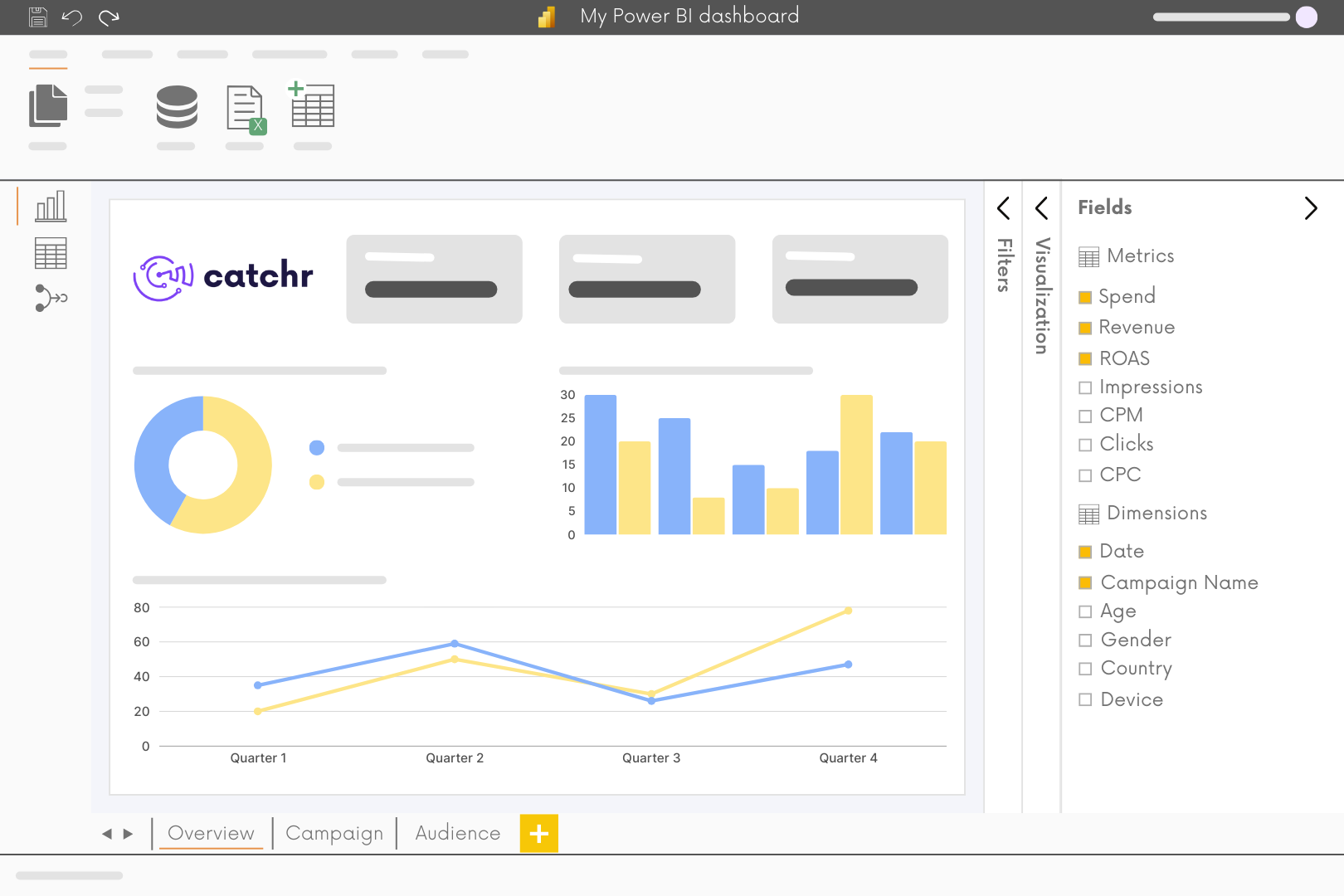
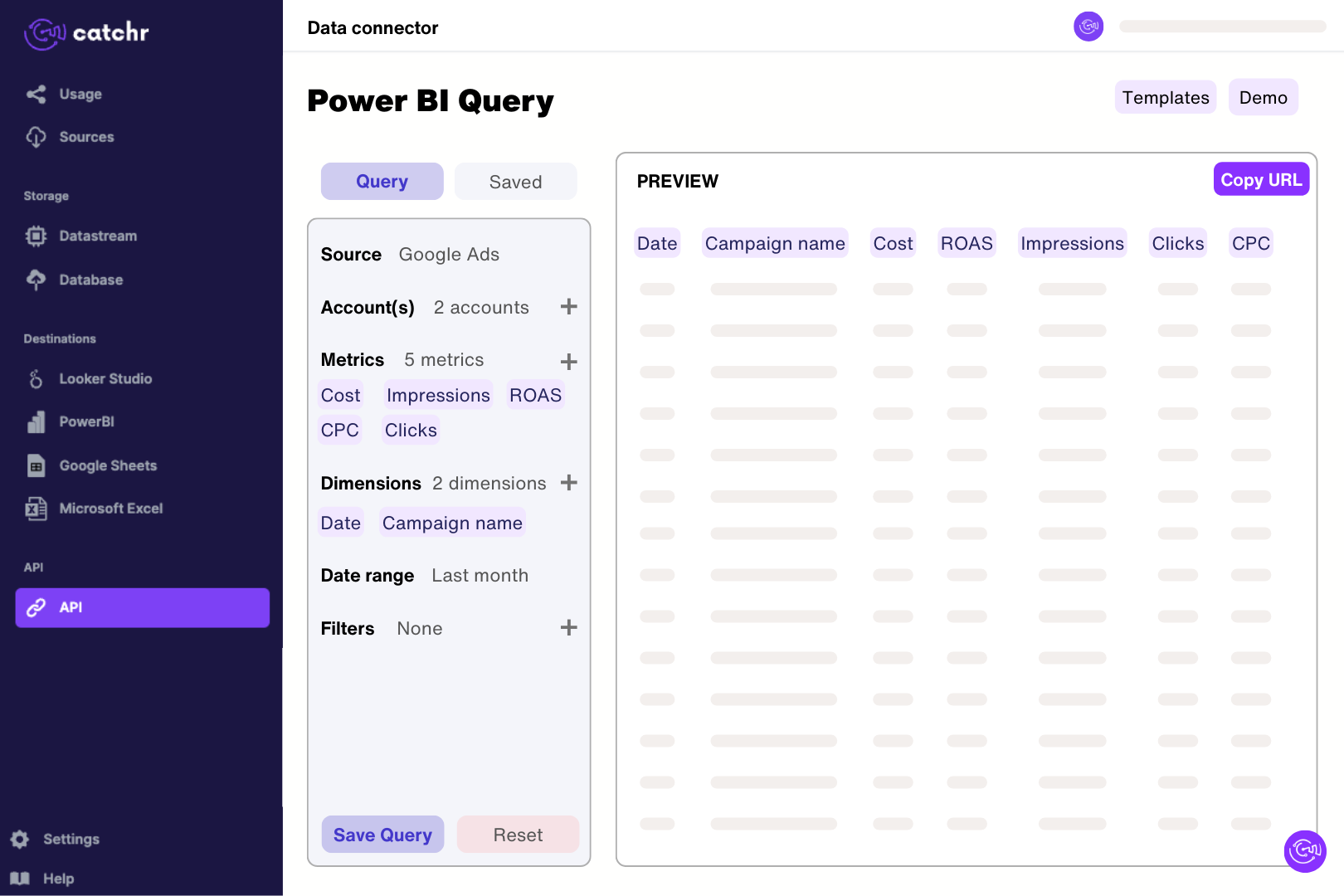
Connect the BigCommerce store in Catchr using its Store Hash and Access Token. In Catchr’s Power BI query builder, select an order-level table before adding product lines and preview a short extraction. Import the generated URL through Get data > Web in Power BI Desktop. Check the returned rows before building measures, keeping order IDs so joining product rows does not multiply order totals clear in the model.
Catchr exposes orders, order products, and customer data. You can report on order status, payment status, totals, discounts, shipping, refunds, product quantities, SKUs, and variants. Use order fields for store-level totals and product fields for item-level analysis; these represent different reporting levels.
Yes. Order-product fields include product ID, variant ID, SKU, name, quantity, and totals with or without tax. They also include shipped and refunded quantities. Use these order-item values to measure sales during the selected period, and check how bundles or parent-child items are represented before aggregating them.
A single order can contain several products, so joining order totals to item rows can repeat the full order value. Count distinct order IDs for order volume and sum item-level totals for product analysis. Check any additional blends for repeated keys before interpreting a higher total as increased revenue.
Yes. The connector includes an order refunded amount and product-level refund amounts, refunded quantities, and refund flags. Keep order and product refund totals separate to avoid counting the same refund twice. A refunded amount on an order is not automatically a daily refund ledger; check the date basis used by your report.
Match order statuses, payment statuses, dates, channel, currency, tax, and shipping treatment. The connector includes both tax-exclusive and tax-inclusive totals, plus separate discounts and refund amounts. Choose the same definition as the store dashboard and avoid adding fees or subtracting discounts a second time if they are already included.
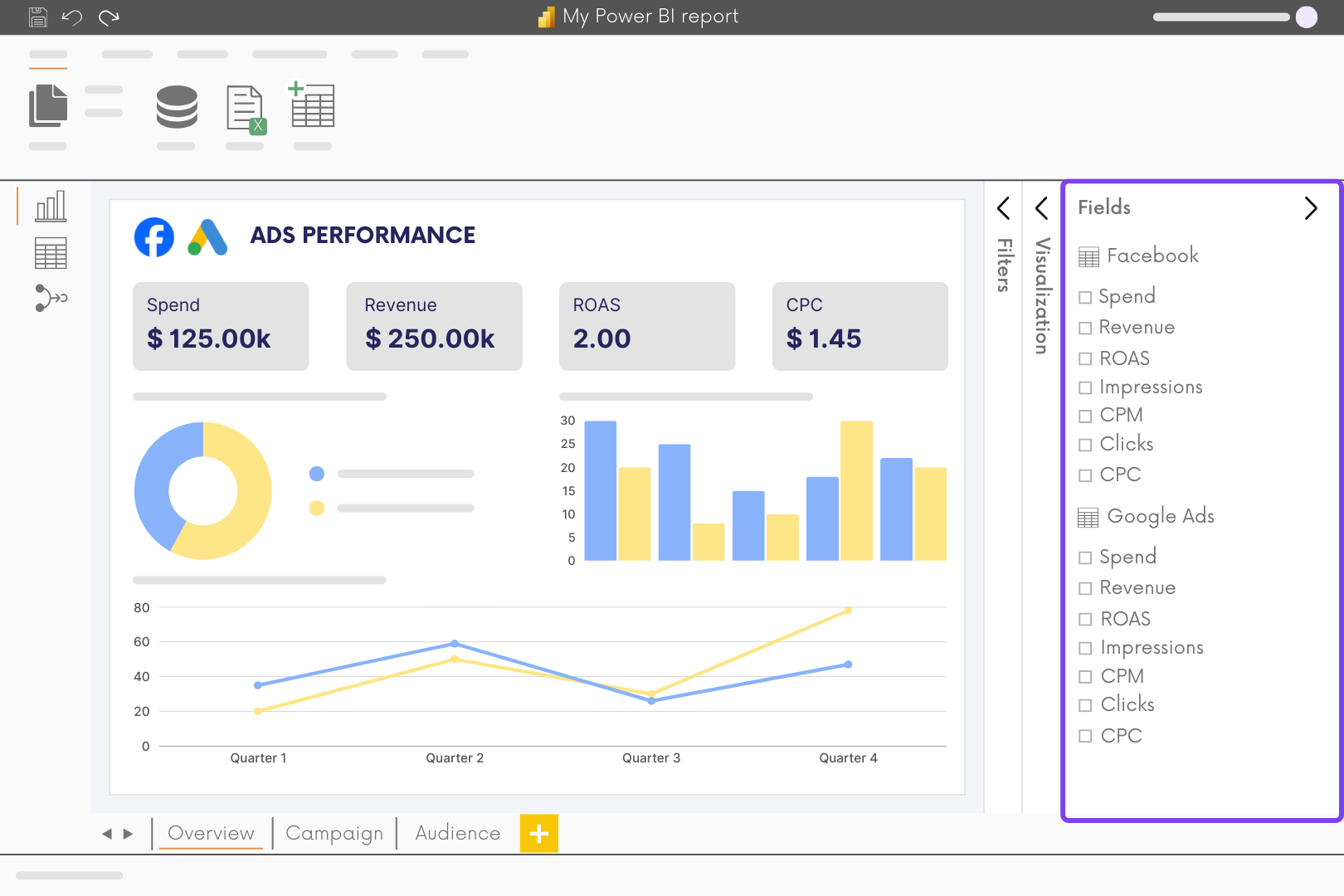
Yes. Add Google Ads to compare costs with store results. Aggregate both sources to compatible dates and currencies before creating relationships, and validate any campaign mapping. Total store sales divided by ad spend is a blended efficiency measure, not the ad platform’s attributed ROAS.
Our team is always here to answer any questions you may have about our data connector.
Connect your marketing platforms and build a data workflow your entire agency can use.





.svg)




























.png)




.svg)