Starter
For freelancers and small teams.
$ 24 /mo
Billed monthly · cancel anytime
Platforms3
Accounts10
.svg) Comment Sold query · Power BI format
Comment Sold query · Power BI format
 Comment Sold
One source
Comment Sold
One source
 Saved query
API URL
Power BI
Web · Import
Saved query
API URL
Power BI
Web · Import
Used by the world's leading companies









Available metrics
Available dimensions
Comment Sold
3 advertising accounts
Connected
 Google Ads
2 advertising accounts
Connected
Google Ads
2 advertising accounts
Connected
 Google Analytics 4
1 web property
Connected
Google Analytics 4
1 web property
Connected
 HubSpot
1 CRM portal
Connected
HubSpot
1 CRM portal
Connected

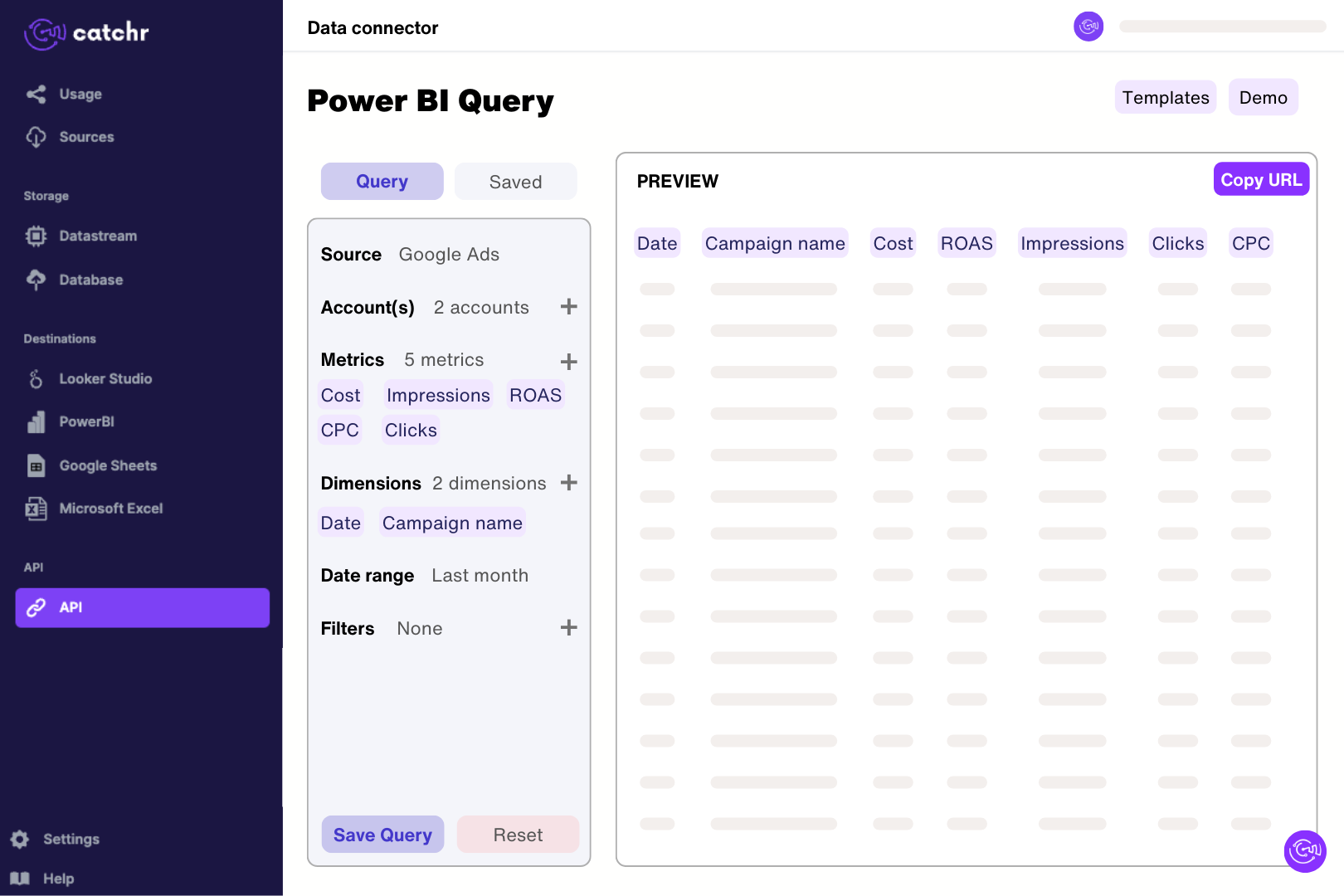
Connect the shop using its CommentSold API token and Shop ID. In Catchr’s Power BI query builder, select Order ID, Order Created At, Order Status and Payment Total and preview a short extraction. Import the generated URL through Get data > Web in Power BI Desktop. Check the returned rows before building measures, keeping order identifiers and the distinction between payment totals and net sales clear in the model.
The current connector exposes orders and customers. Order fields include status, creation and payment dates, subtotal, shipping, taxes, coupon discounts and fulfillment information. Customer fields include identifiers, location and marketing-consent indicators. Use these for order and customer reporting; the connector does not currently expose the full product, inventory or returns datasets available in CommentSold’s own reporting tools.
Yes. Count distinct Order IDs and summarize the payment measure appropriate to your report, with a clearly labelled date field. Order Created At and Order Payment Date answer different questions. Filter Order Status to match the orders you intend to include, and keep one row per order when validating totals so joins or duplicate records do not inflate the result.
A payment total is not automatically the same as net sales. CommentSold reports distinguish product sales, discounts, refunds, shipping, taxes and other adjustments. The Catchr catalog exposes several payment components but does not include a complete refund dataset. Compare the exact measure and date basis, and do not label summed Payment Total as net sales or profit without accounting for the missing adjustments.
Yes. Use Order Payment Coupon Code with distinct Order IDs and Payment Coupon Discount to compare recorded coupon use and discount amounts. Keep the comparison at order level and check that the selected statuses and dates match your CommentSold report. A coupon-associated order total describes orders using that code; it does not prove that the coupon caused all of those sales.
The current Catchr connector does not expose product-line, SKU or live-session fields, so it cannot directly reproduce a best-selling-products or per-live-session report. Use CommentSold’s reporting exports for those datasets. If you prepare an export in a spreadsheet, the Google Sheets source provides another reporting route.
Yes. The available fields include order status, fulfill-by information, local-pickup indicators, pickup time, shipment date and tracking number. Use them to review orders awaiting fulfillment and distinguish pickup from shipped orders. Shipping charged to the customer is a payment field, not automatically the cost of buying a shipping label, so keep delivery operations and shipping profitability as separate questions.
Our team is always here to answer any questions you may have about our data connector.
Connect your marketing platforms and build a data workflow your entire agency can use.





.svg)



























.png)




.svg)