Starter
For freelancers and small teams.
$ 24 /mo
Billed monthly · cancel anytime
Platforms3
Accounts10
.svg) Google My Business query · Power BI format
Google My Business query · Power BI format
 Google My Business
One source
Google My Business
One source
 Saved query
API URL
Power BI
Web · Import
Saved query
API URL
Power BI
Web · Import
Used by the world's leading companies









Available metrics
Available dimensions
Google My Business
3 advertising accounts
Connected
 Google Ads
2 advertising accounts
Connected
Google Ads
2 advertising accounts
Connected
 Google Analytics 4
1 web property
Connected
Google Analytics 4
1 web property
Connected
 HubSpot
1 CRM portal
Connected
HubSpot
1 CRM portal
Connected

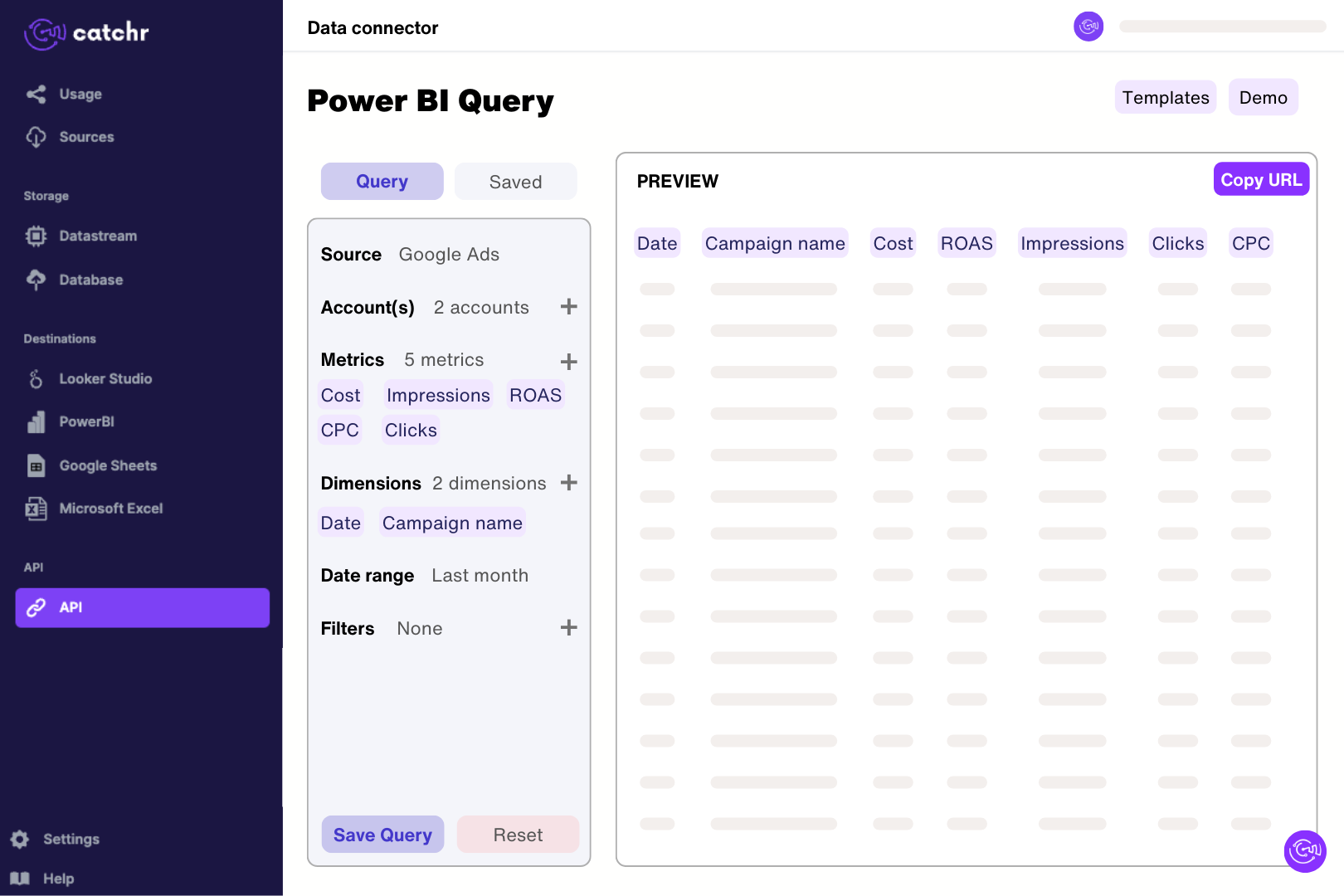
Authorize Catchr with a Google account that can access the Business Profile locations. In Catchr’s Power BI query builder, select location, profile impressions, website clicks, call clicks and direction requests and preview a short extraction. Import the generated URL through Get data > Web in Power BI Desktop. Check the returned rows before building measures, keeping location IDs and the meaning of each interaction metric clear in the model.
Yes. Google My Business is the former name, and the Catchr connector retains that name. It reports on business locations managed through Google Business Profile. Use the Google account with access to those locations; access to a website’s analytics account alone does not establish access to its Business Profile.
Call clicks count clicks on the profile’s call button; they are not a count of answered phone conversations. Direction requests indicate requests for directions, not confirmed store visits. Website clicks likewise measure clicks from the profile rather than completed website sessions. Label these interactions accurately when reporting leads or local engagement.
Yes. The connector includes separate business-impression metrics for Google Search and Maps on desktop and mobile. Google counts repeat impressions by the same user within a day once within each metric. Adding daily values or different surfaces does not produce a deduplicated count of people across the whole period.
Google provides search-keyword impressions through a monthly report, separate from daily performance metrics. Use month-level charts for keyword trends instead of interpreting the totals as daily activity. Some low-volume values may be represented by a threshold, so keep reported counts and threshold-based estimates distinct when comparing search terms.
Location IDs, titles, store codes, and labels help organize the locations available through your connected account. Use location IDs or unique store codes to distinguish branches with similar names, then create filters or separate charts. Compare locations over the same period and keep local interactions separate from website-wide totals.
Yes. Add Google Analytics 4 to examine website sessions and key events alongside local-profile interactions. Tag profile website links consistently to identify that traffic. Call clicks and direction requests do not automatically become GA4 conversions, and profile website clicks will not necessarily match tracked sessions.
Our team is always here to answer any questions you may have about our data connector.
Connect your marketing platforms and build a data workflow your entire agency can use.





.svg)



























.png)




.svg)