Starter
For freelancers and small teams.
$ 24 /mo
Billed monthly · cancel anytime
Platforms3
Accounts10
.svg) WooCommerce query · Power BI format
WooCommerce query · Power BI format
 WooCommerce
One source
WooCommerce
One source
 Saved query
API URL
Power BI
Web · Import
Saved query
API URL
Power BI
Web · Import
Used by the world's leading companies









Available metrics
Available dimensions
WooCommerce
3 advertising accounts
Connected
 Google Ads
2 advertising accounts
Connected
Google Ads
2 advertising accounts
Connected
 Google Analytics 4
1 web property
Connected
Google Analytics 4
1 web property
Connected
 HubSpot
1 CRM portal
Connected
HubSpot
1 CRM portal
Connected

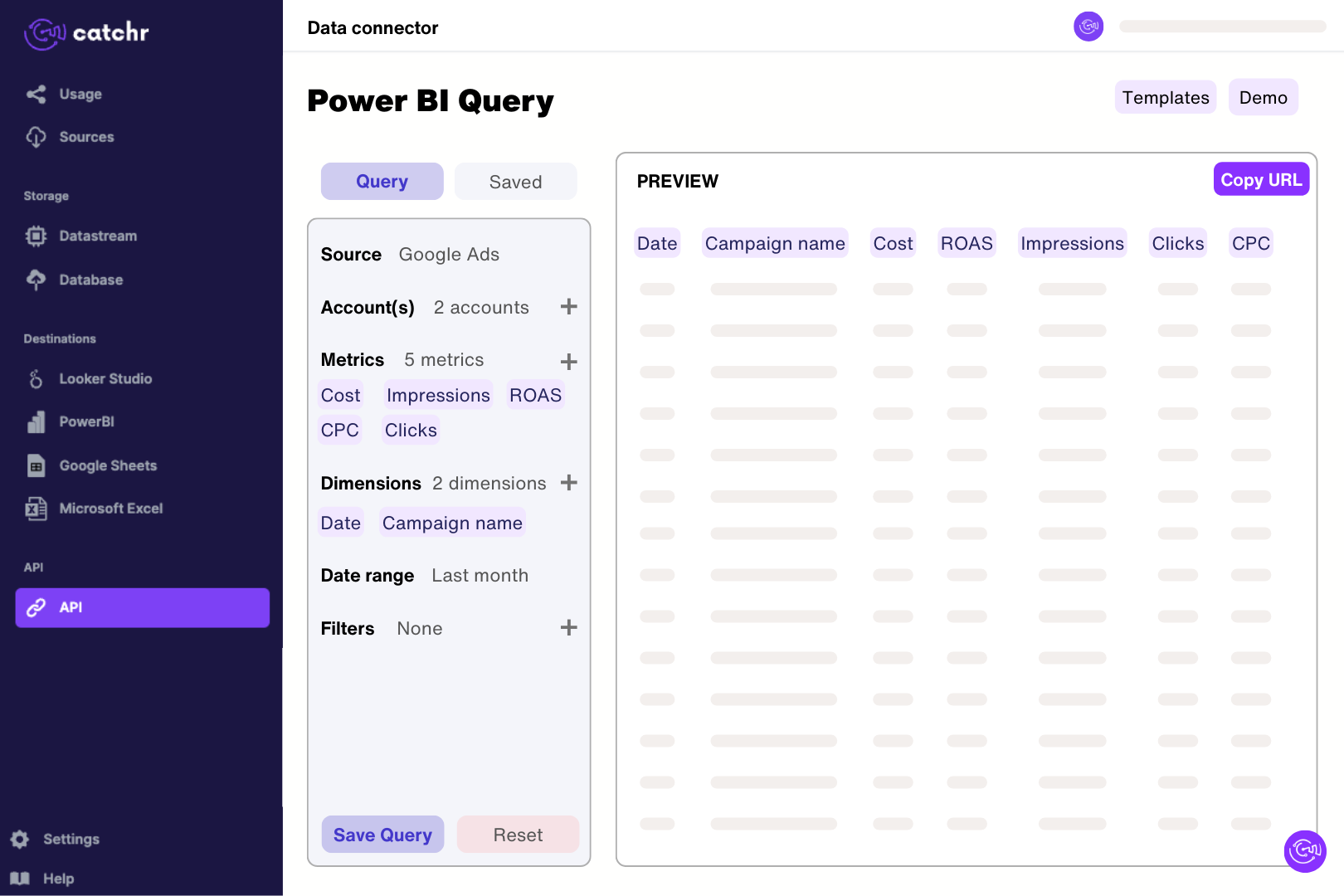
Connect the WooCommerce store in Catchr with its URL, consumer key and consumer secret. In Catchr’s Power BI query builder, select order IDs, dates, statuses and totals and preview a short extraction. Import the generated URL through Get data > Web in Power BI Desktop. Check the returned rows before building measures, keeping order statuses and order-level totals before expanding product lines clear in the model.
Catchr includes orders, order lines, products, product variations, customers, and coupons. You can examine order totals, discounts, shipping, taxes, quantities, SKUs, payment methods, and order status. Use order-level fields for a sales overview and line-item fields for product performance; they represent different levels of detail.
Check whether an order total is repeated for every product row or duplicated by a blend. A three-product order still has one order total. Also align included statuses, currency, tax, shipping, and refund treatment with the WooCommerce report you are comparing. A sum of raw order totals is not automatically the same measure as net sales.
Yes. Use order-line product ID, variation ID, SKU, quantity, and line total to compare what was sold. Line subtotal is before discounts, while line total is after discounts; taxes have separate fields. Keep order-level shipping and totals out of a simple product sum unless you deliberately allocate them across items.
Order creation, payment, completion, and modification dates describe different stages of an order. Choose the date that matches the question and check the date range field used by the chart. For example, an order created at month-end may be paid the next month. Align local and GMT date fields before comparing periods.
Customer IDs identify registered customers, but WooCommerce uses customer ID 0 for guest orders. Counting distinct customer IDs therefore does not provide a complete count of individual buyers when guest checkout is used. Keep registered-customer analysis separate from guest-order totals, and define a consistent customer identification method before calculating repeat purchase rates.
Yes. Add Google Ads or another advertising source to compare spend with store sales. Aggregate orders and spend to compatible dates and currencies before creating relationships. Store attribution fields may help where they are populated, but total store revenue divided by ad spend is a blended efficiency measure, not proof that every sale came from those ads.
Our team is always here to answer any questions you may have about our data connector.
Connect your marketing platforms and build a data workflow your entire agency can use.





.svg)




























.png)




.svg)