Home > Destinations > Data Studio (ex Looker Studio) > Bigcommerce

Connect Bigcommerce to Data Studio (ex Looker Studio)

Connect Bigcommerce to Data Studio (ex Looker Studio) and and build automated dashboards without CSV exports, spreadsheets, or manual API setup.

Looker Studio
Power BI
Google Sheets
BigQuery
Snowflake

Used by the world's leading companies

Why do agencies use Catchr for Bigcommerce reporting in Data Studio (Looker Studio)?

Catchr lets media buyers and agencies stop rebuilding Bigcommerce reports by hand: the data lands in Data Studio ready to chart, for every ad account you manage.

No manual csv export
‍

Stop downloading files from Bigcommerce every time a client report, spreadsheet, or dashboard needs fresh numbers.

Connected in minutes

Your first Bigcommerce report can be live in a few minutes. Authorize your Bigcommerce account, pick your ad accounts, and your data source is ready.

Built for agencies with many Ecommerce accounts

Pull several Ecommerce accounts into one data source, then filter by account to build a report per client or brand in the same Data Studio file.

Bigcommerce to Looker Studio pricing

Choose your plan by the number of platforms and accounts you report on.

Starter

For freelancers and small teams.

$ 24 /mo

Billed monthly · cancel anytime

Platforms3
Accounts10
Start free trial

Growth

For agencies managing more clients.

$ 239 /mo

Billed monthly · cancel anytime

Platforms10
Accounts100
Start free trial

Scale

For teams reporting at scale.

$ 599 /mo

Billed monthly · cancel anytime

Platforms25
Accounts500
Start free trial

How to connect Bigcommerce to Data Studio with Catchr?

To connect Bigcommerce to Looker Studio (Data Studio), open the Catchr connector, authorize your Bigcommerce account, select the ad accounts you want to report on, then create your report.

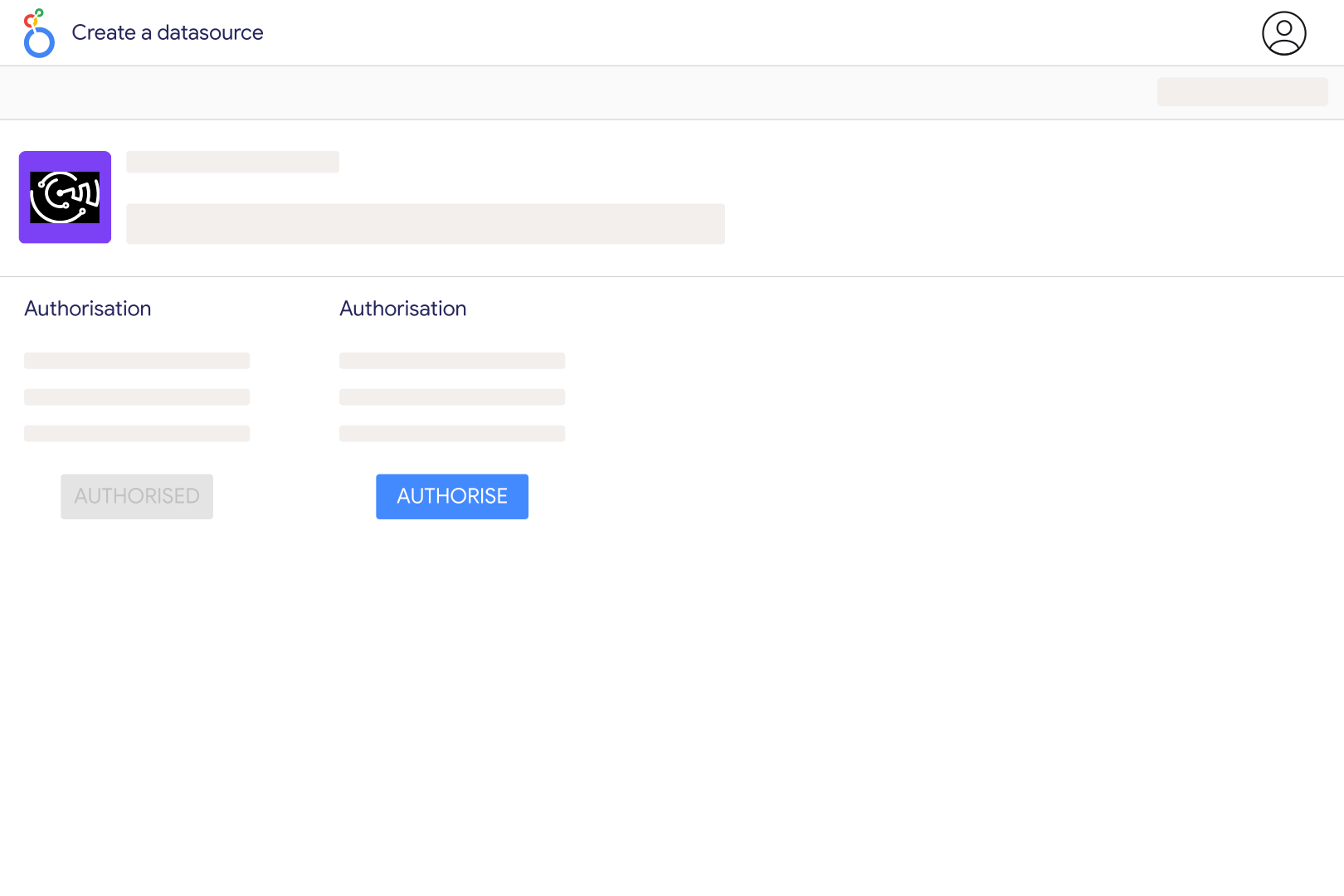
1. Open the Catchr Bigcommerce connector in Looker Studio

Click the connector link to open it inside Looker Studio. You will be asked to authorize the connector before creating your data source.

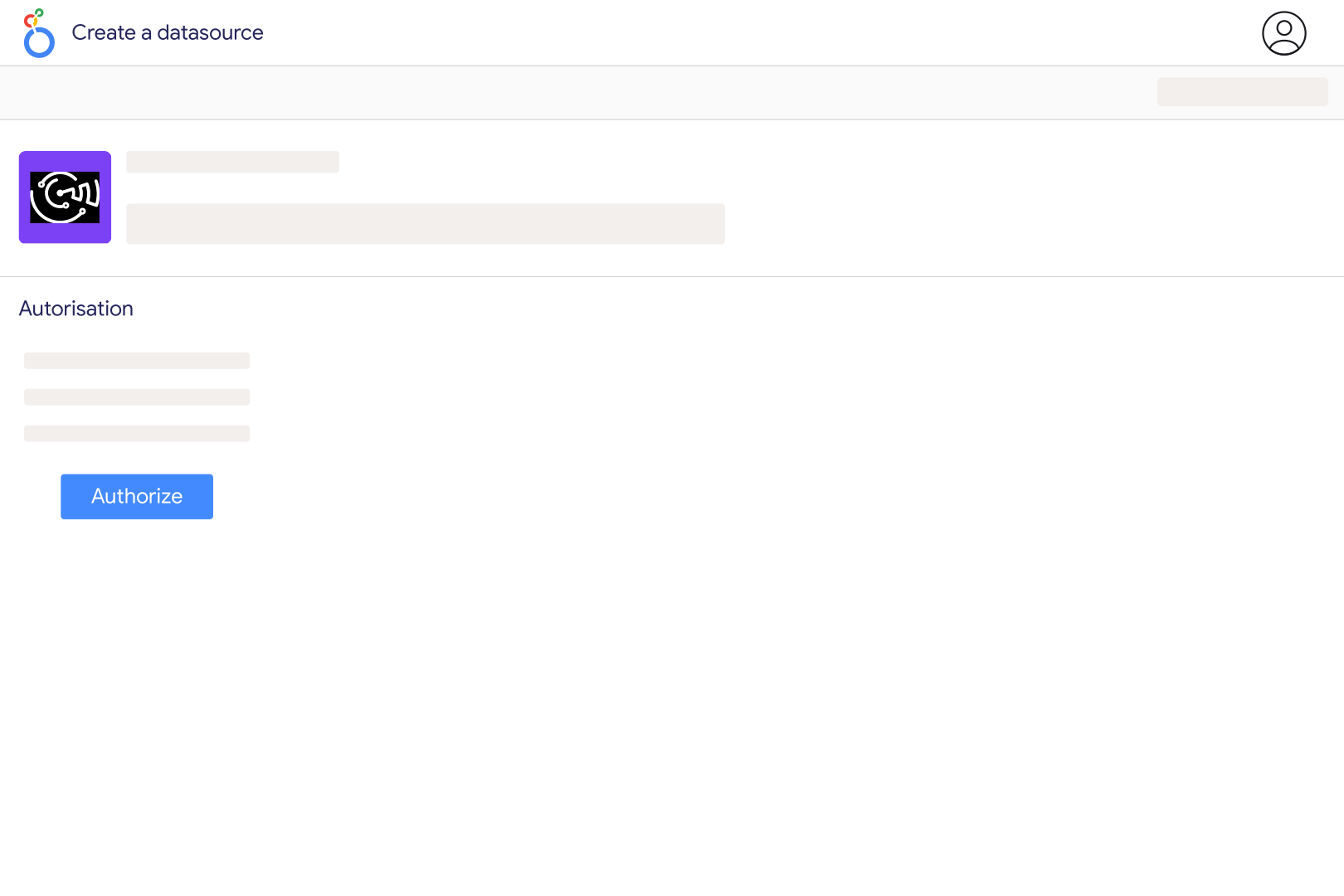
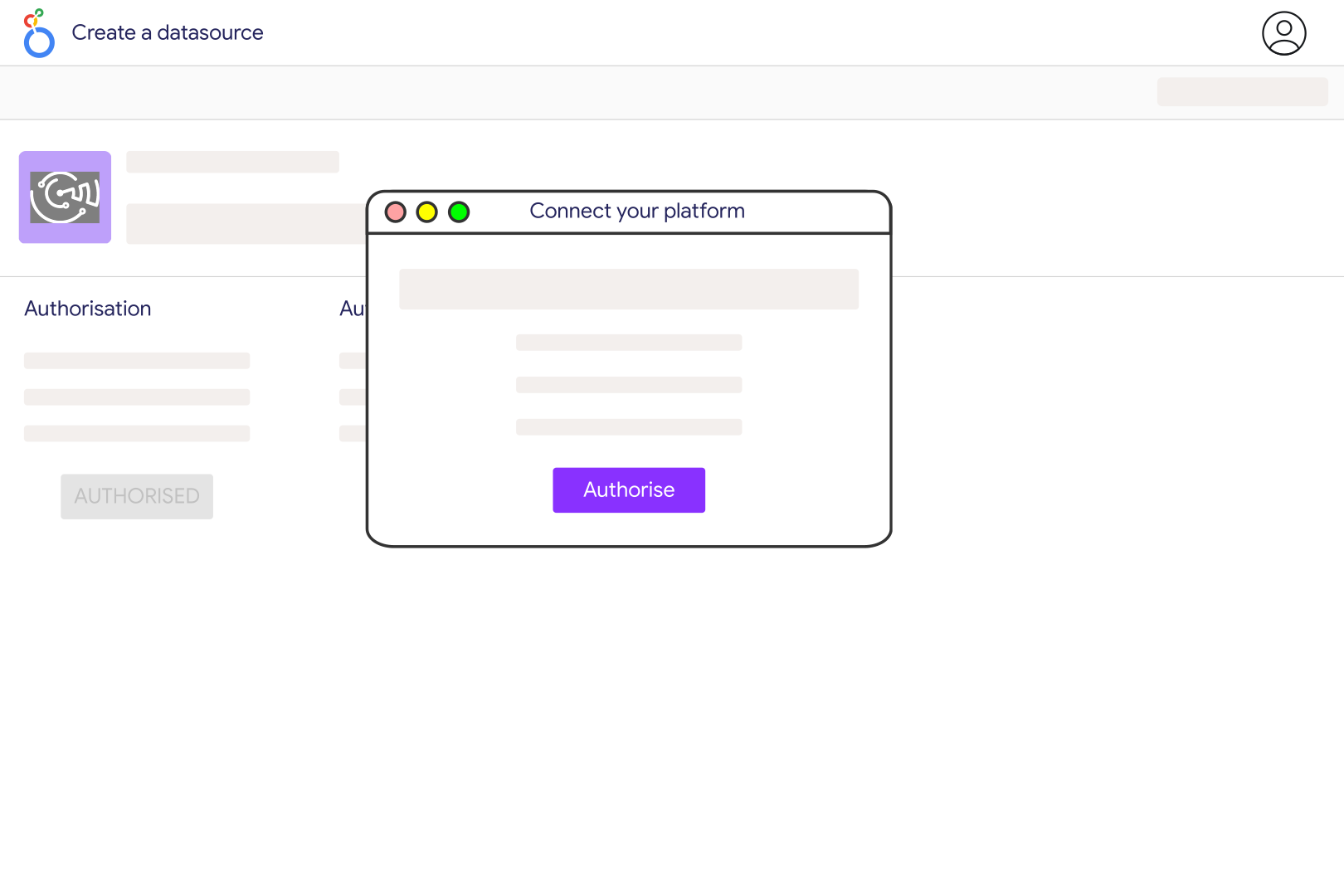
2. Authorize Looker Studio (Data Studio) and Catchr

Choose the Google account you use for Looker Studio and authorize Catchr to create a secure Bigcommerce data source.

3. Connect your Bigcommerce account

Sign in with your Bigcommerce account that has access to the accounts you want to report on. Make sure your user has the right Bigcommerce permissions.

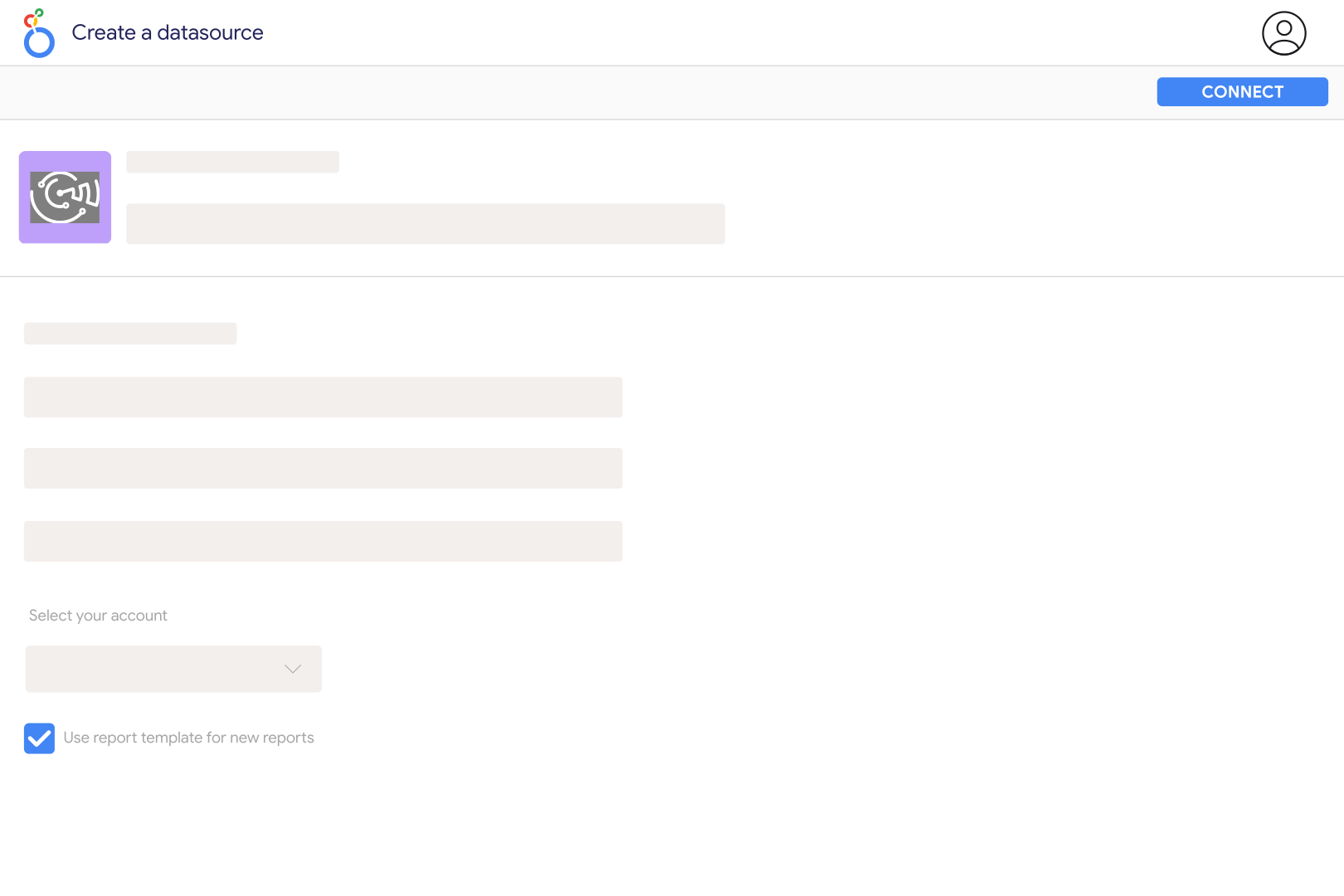
4. Select your Bigcommerce accounts

Choose one or several Ecommerce accounts, depending on the report you want to build.

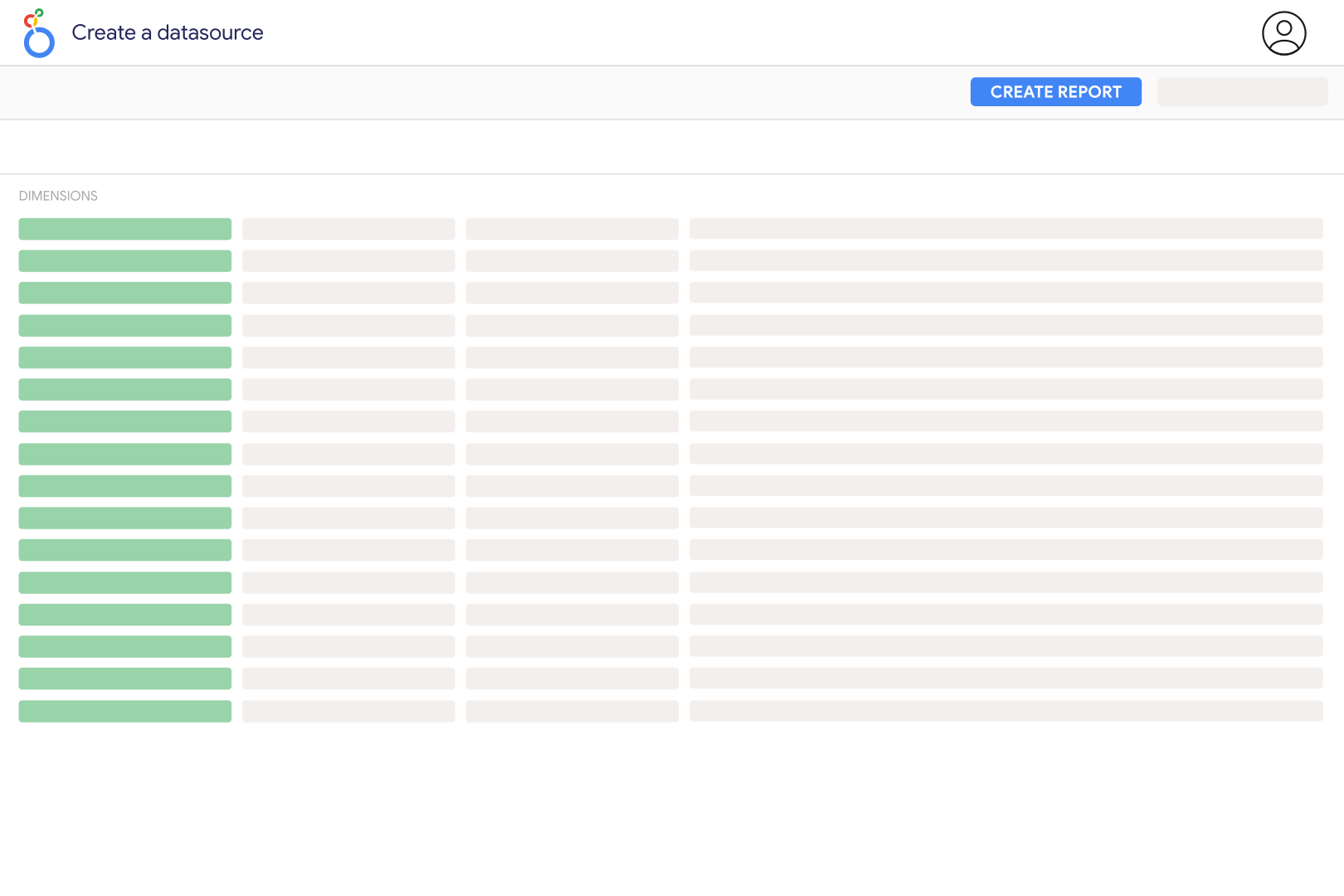
5. Create your Data Studio report

Click Create report, then add charts, scorecards, tables, filters, and date controls using your Bigcommerce metrics and dimensions.

6. Customize your dashboard

Use Orders Total Inc Tax, Orders Total Ex Tax, Orders Discount Amount, Orders Coupon Discount, Orders Refunded Amount, Order Products Quantity, Order Products Total Inc Tax, Date, Order Products Name, Order Products Sku, Order Products Brand, Orders Order Source, Orders Currency Code, Orders Geoip Country and many more.

Bigcommerce metrics and dimensions available in Data Studio

Access 43 metrics and 103 dimensions from Bigcommerce connectors including Orders Total Inc Tax, Orders Total Ex Tax, Orders Discount Amount, Orders Coupon Discount, Orders Refunded Amount, Order Products Quantity, Order Products Total Inc Tax, Date, Order Products Name, Order Products Sku, Order Products Brand, Orders Order Source, Orders Currency Code, Orders Geoip Country and more.

43

Available metrics

103

Available dimensions

Build better Bigcommerce dashboards in Data Studio (ex Looker Studio)

Use Catchr to create dashboards that show what is working, what is wasting budget, and where performance is changing.

Client reporting for agencies

Create clean Looker Studio dashboards for each client with with Orders Total Inc Tax, Orders Total Ex Tax, Orders Discount Amount, Orders Coupon Discount, Orders Refunded Amount, Order Products Quantity, Order Products Total Inc Tax always up to date.

Budget pacing

Compare daily spend with the monthly budget of each campaign, so overspend shows up mid-month instead of on the invoice.

Review what drives results across

Compare to see where budget, traffic, or revenue is improving and where performance is dropping.

Compare with your other channels

Combine with your others marketing to understand performance across your full acquisition journey.

Keep an eye on Bigcommerce performance

Track Bigcommerce Orders Total Inc Tax, Orders Total Ex Tax, Orders Discount Amount, Orders Coupon Discount, Orders Refunded Amount, Order Products Quantity, Order Products Total Inc Tax in refreshable Data Studio dashboards so you can spot changes before they become reporting problems.

Customer testimonials

What our customers say about us.

85 %
Faster
Reporting time

After three years of use, Catchr has become essential for both our teams and our clients. So far, it has been our best solution for compiling and analyzing data from different advertising platforms. It’s easy to set up, and the customer service is responsive and excellent.

Valentin Keravel
CEO, Laio – Agency

With Catchr’s automated API, we can finally collect and centralize all advertising data, connect it with booking information, and calculate the real ROAS for our restaurant clients. It gives them full visibility, more autonomy, and the ability to optimize campaigns to maximize ROI.

Corentin Largeron
Freelance
30
hours saved

The solution is a real game changer, providing optimal time savings for our data reporting. The major strength of the solution is their highly responsive and professional support.

Corentin Largeron
CEO at The Browz – Agency

Bigcommerce to Data Studio (ex Looker Studio): FAQ

Answers to common questions about connecting data to spreadsheets, dashboards, AI assistants, and reporting tools with Catchr.

How do I connect BigCommerce to Looker Studio?

Add your BigCommerce store to Catchr using its Store Hash and Access Token. Open the Catchr BigCommerce connector in Looker Studio, authorize Google, and select the connected store. Create an order-level table first, then add product charts to compare what customers bought.

Which BigCommerce fields can I report on?

Catchr exposes orders, order products, and customer data. You can report on order status, payment status, totals, discounts, shipping, refunds, product quantities, SKUs, and variants. Use order fields for store-level totals and product fields for item-level analysis; these represent different reporting levels.

Can I analyze BigCommerce products and variants?

Yes. Order-product fields include product ID, variant ID, SKU, name, quantity, and totals with or without tax. They also include shipped and refunded quantities. Use these order-item values to measure sales during the selected period, and check how bundles or parent-child items are represented before aggregating them.

Why are BigCommerce order totals duplicated in my report?

A single order can contain several products, so joining order totals to item rows can repeat the full order value. Count distinct order IDs for order volume and sum item-level totals for product analysis. Check any additional blends for repeated keys before interpreting a higher total as increased revenue.

Can I report on BigCommerce refunds?

Yes. The connector includes an order refunded amount and product-level refund amounts, refunded quantities, and refund flags. Keep order and product refund totals separate to avoid counting the same refund twice. A refunded amount on an order is not automatically a daily refund ledger; check the date basis used by your report.

Why do BigCommerce sales differ from the store dashboard?

Match order statuses, payment statuses, dates, channel, currency, tax, and shipping treatment. The connector includes both tax-exclusive and tax-inclusive totals, plus separate discounts and refund amounts. Choose the same definition as the store dashboard and avoid adding fees or subtracting discounts a second time if they are already included.

Can I compare BigCommerce sales with advertising spend?

Yes. Add Google Ads to compare costs with store results. Aggregate both sources to compatible dates and currencies before blending, and validate any campaign mapping. Total store sales divided by ad spend is a blended efficiency measure, not the ad platform’s attributed ROAS.

Still have a question?

Our team is always here to answer any questions you may have about our data connector.