Q3_Marketing_Command_Center.xlsx
A saved query knows its output range. Choose the update behavior that matches how the workbook should accumulate or reconcile rows.
Start with a dedicated connection page for the platform you use. Each route explains the source data, useful fields, query setup, and workbook applications for that connector.
Configure the source once, then build and rerun focused queries from the Excel add-in whenever your workbook needs new rows.
Authenticate all the platforms used, then choose the exact accounts your team needs for reporting and analysis.
 Meta Ads
3 advertising accounts
Connected
Meta Ads
3 advertising accounts
Connected
 Google Ads
2 advertising accounts
Connected
Google Ads
2 advertising accounts
Connected
 Google Analytics 4
1 web property
Connected
Google Analytics 4
1 web property
Connected
 HubSpot
1 CRM portal
Connected
HubSpot
1 CRM portal
Connected
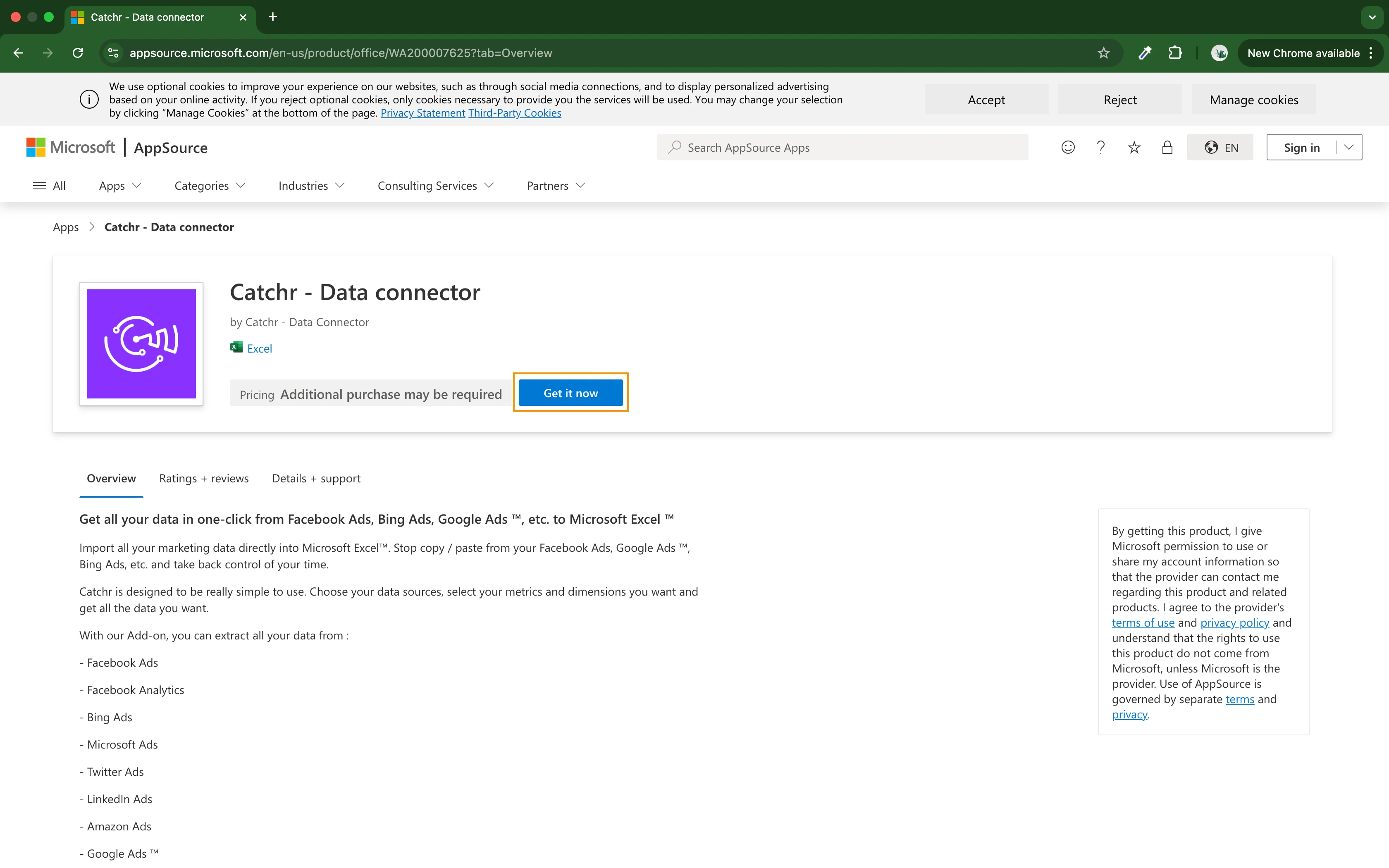
Install Catchr from Microsoft Marketplace, open the task pane in Excel for web or desktop, then sign in to your Catchr workspace.
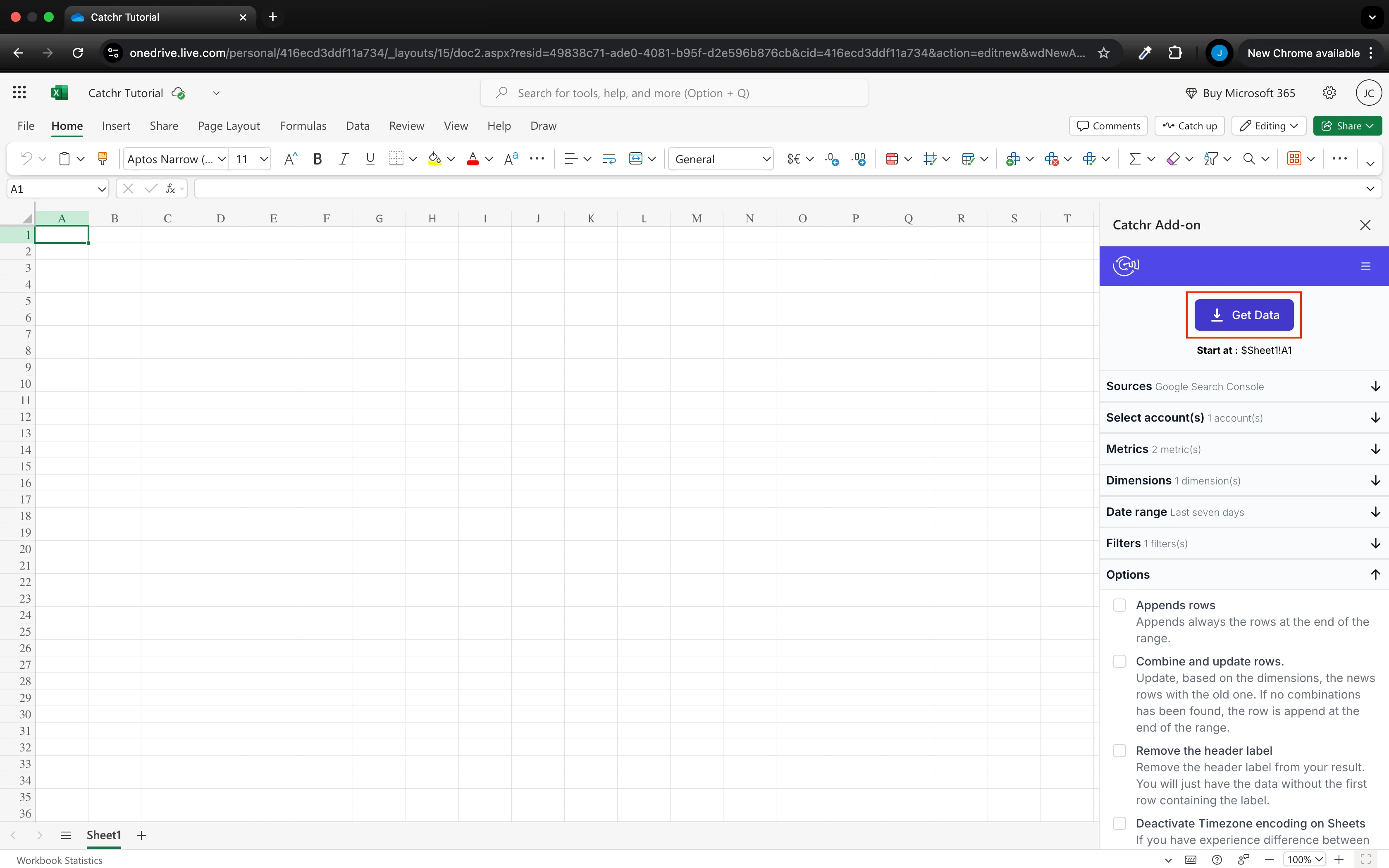
Choose the source, accounts, fields, dates, and filters. Select the starting cell in a dedicated raw-data sheet, then use Get Data to write the response.
Connect your marketing platforms and build a data workflow your entire agency can use.






.svg)



































.svg)



.png)