Embedding brings Power BI insights closer to where marketing work happens. The key decision is whether you need a secure embed for a controlled audience, or a public embed that anyone can access.
Before you start, there is one essential thing to know: Power BI Service is required for publishing, sharing, and most embedding options. Learn where that sits in the workflow in Power BI Desktop vs Power BI Service.
Definition: Power BI embedding
Embedding means showing a Power BI report inside another page or tool while keeping access controlled by Power BI.
Power BI embedding options
Secure embed for internal or authenticated audiences
Use secure embedding when the report is for teammates, clients, or partners who should only see authorized data. This keeps the report behind authentication and respects workspace, Power BI permissions and governance.
For marketing dashboards, secure embed is the default. It protects spend, pipeline, and performance data while still making reports easy to access in internal portals or client hubs.
Power BI Embedded for product or portal experiences
When analytics are embedded inside a product or customer portal, Power BI Embedded is the typical path. It is designed for application‑style embedding and requires planning around identity, licensing, and access.
In marketing contexts, keep this conceptual unless engineering is involved, because it is not just a front‑end choice.
Publish to web (public): when NOT to use it
Publish to web makes a report public. Anyone with the link can view it, and it can be shared beyond your control. Many organizations disable it for governance reasons.
Do not use Publish to web for:
- Client reporting
- Internal performance dashboards
- Anything with customer data, costs, pipeline, or sensitive segmentation
- Reports that reveal strategy, budgets, or partner performance
If broad distribution is needed, use controlled sharing in Power BI Service instead and verify Power BI pricing and licensing.
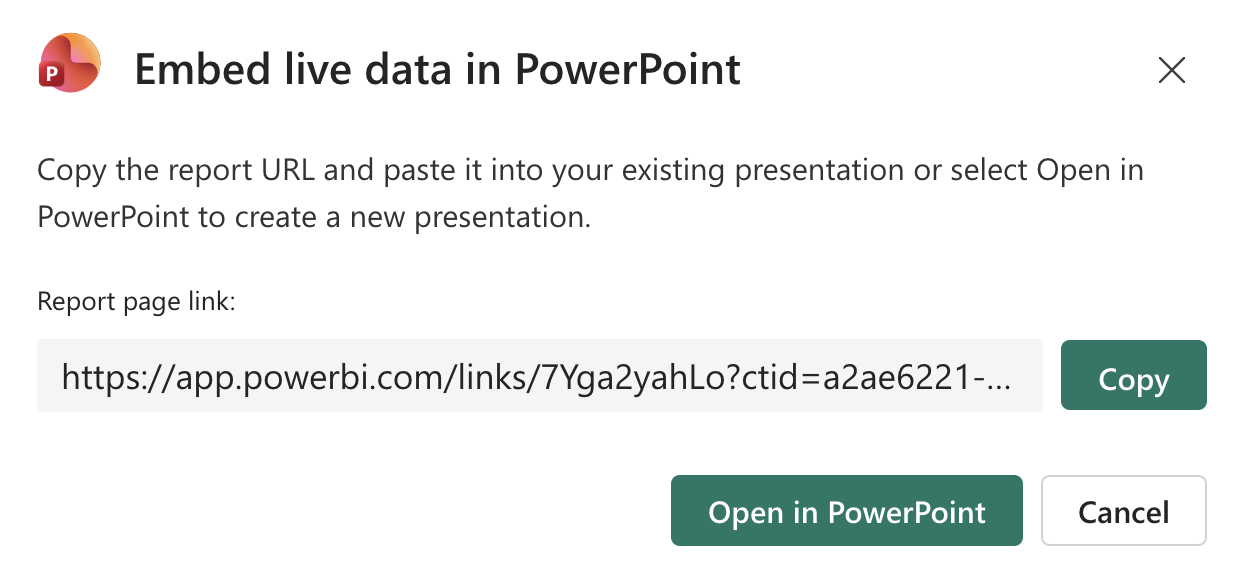
Embed Power BI in PowerPoint (executive‑friendly)
Embedding in PowerPoint keeps the dashboard live while fitting the presentation workflow. It works best for executive readouts where questions might require drilling into a channel or campaign view.
Keep the embedded report focused. Fewer pages and fewer slicers load faster and reduce “why is this slide updating?” moments. For the delivery flow, see How to Present a Power BI Dashboard.
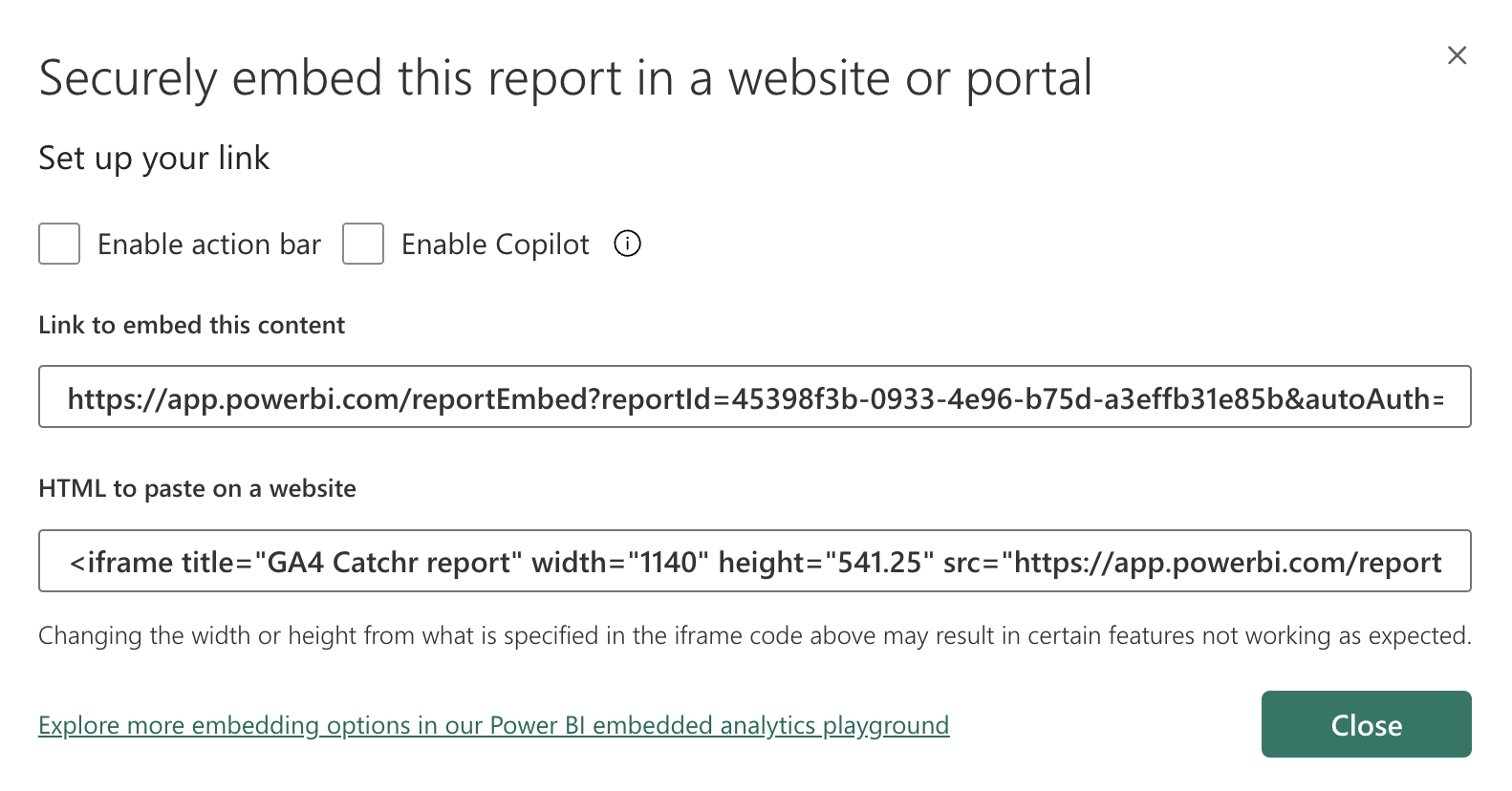
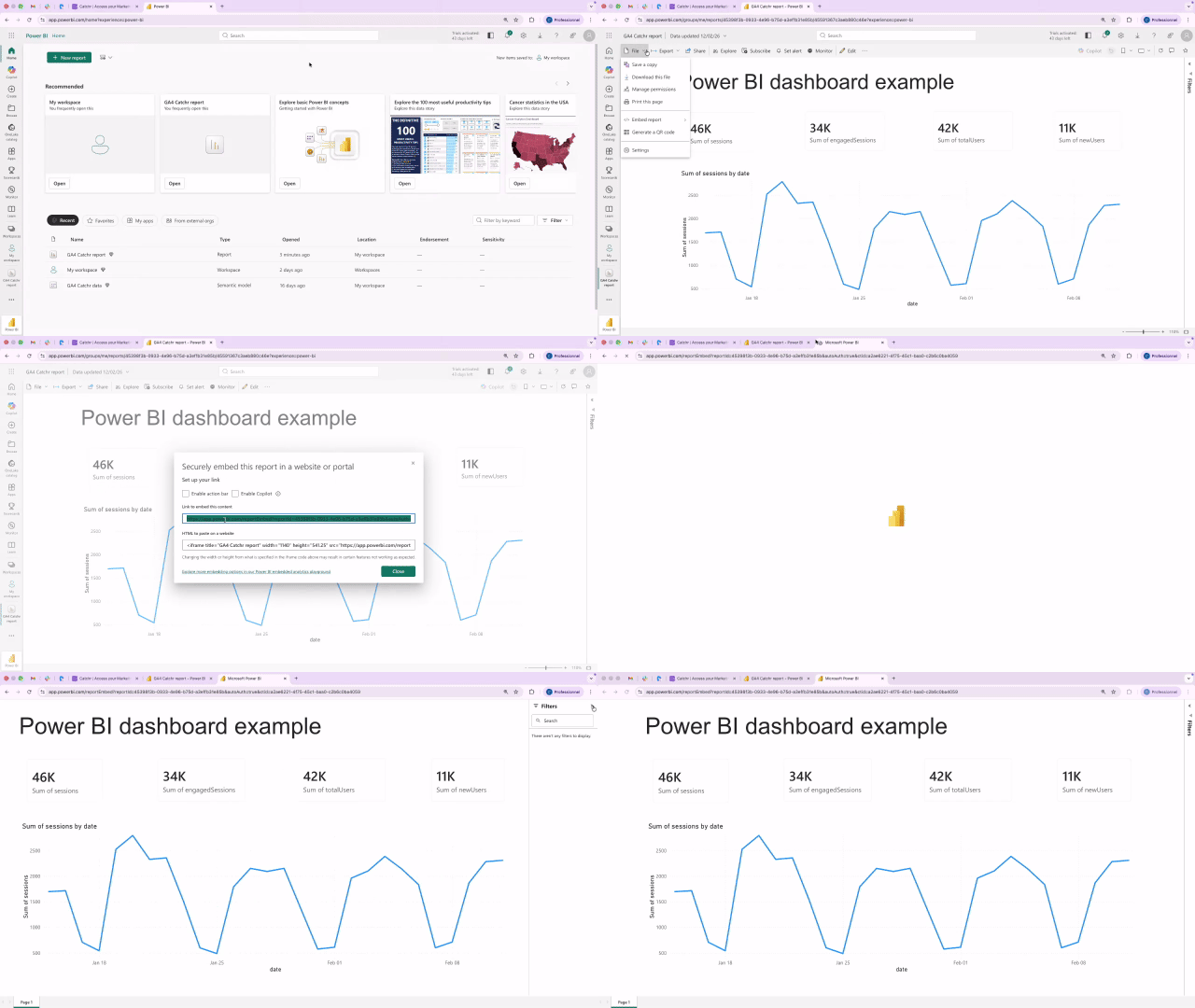
How to embed a Power BI report in a website (step by step)
- Open the report in Power BI Service.
- Select File → Embed report.
- Choose Website or portal.
- Copy the link or iframe code.
- Paste it into your portal or internal site.
- Validate access and confirm Power BI permissions and governance.
Prepare the report before embedding
- A clean report experience makes embedding more useful.
- Clarify report vs dashboard structure in Dashboard vs Report.
- Improve navigation with Advanced UX in Power BI.
- Keep data reliable with Refresh data in Power BI and the production‑level Power BI refresh strategy for marketing reporting.
Marketing use cases for embedding and integrations
Embedding adds value when it reduces friction in recurring routines:
- Weekly growth review with a single live report link
- Client reporting that needs controlled access and consistent definitions
- Marketing ops command center pages checked daily
- Campaign launch war rooms where rapid drilldowns matter
Where Catchr fits for marketing teams
Catchr can send marketing data directly into Power BI as a destination so embedded reports stay current without manual exports.
Catchr supports 80+ marketing sources and automatic data refresh, which helps keep reports reliable and on schedule. It also supports multiple destinations beyond Power BI, including reporting tools, data warehouses, storage, databases, and API. A faster starting point is the Power BI templates collection.
⭐️ Start your free trial ⭐️
Conclusion
Embedding is about proximity and trust. Use secure embed options for real marketing dashboards, avoid Publish to web for anything sensitive, and use PowerPoint embedding when a presentation flow with live answers is required.
FAQ
Does embedding require Power BI Service?
Yes. Publishing, sharing, and scheduled refresh are handled in Power BI Service, and embedding starts there. Power BI Desktop vs Power BI Service
Is it safe to embed a Power BI report in a website?
Short answer: Yes, when secure embed is used for authenticated audiences. Avoid Publish to web for anything sensitive.
Is Publish to web safe for client data?
No. It is public by design and should only be used for data intended for open access.
Do embedded reports stay up to date automatically?
They do when scheduled refresh is configured. Refresh data in Power BI
Can a Power BI report be embedded in PowerPoint?
Yes. Power BI can be embedded in PowerPoint for live executive reviews. How to Present a Power BI Dashboard