





Starter
For freelancers and small teams.
$ 24 /mo
Billed monthly · cancel anytime
Platforms3
Accounts10


Trusted by teams that would rather improve campaigns than copy cells.










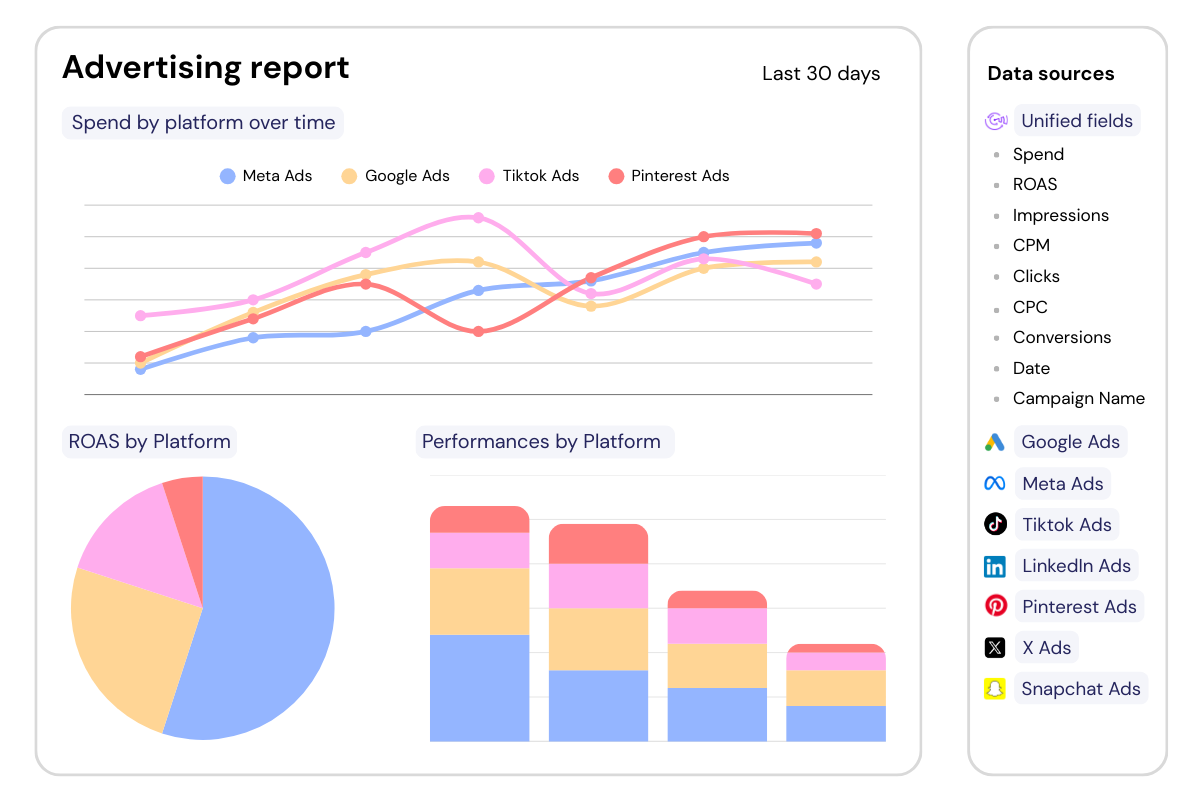
Add Catchr to Google Sheets from the Google Workspace Marketplace, then open it from the spreadsheet where you want to work.


Open Google Sheets and start the Catchr add-on. Sign in with your Catchr account.
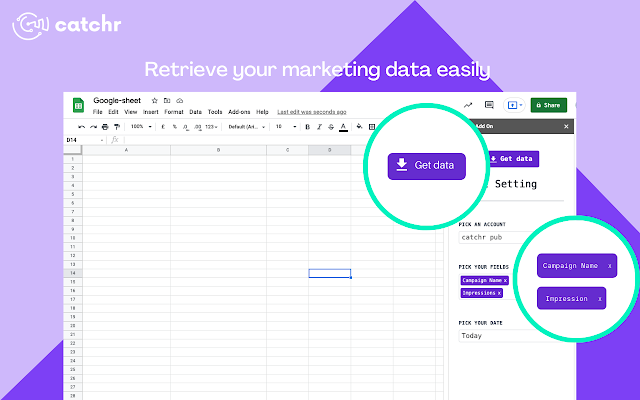

Run your first import, then schedule automatic refreshes to keep your spreadsheet up to date while your formulas, charts, and pivot tables continue working.
Available metrics
Available dimensions


What our customers say about us.
After three years of use, Catchr has become essential for both our teams and our clients. So far, it has been our best solution for compiling and analyzing data from different advertising platforms. It’s easy to set up, and the customer service is responsive and excellent.

With Catchr’s automated API, we can finally collect and centralize all advertising data, connect it with booking information, and calculate the real ROAS for our restaurant clients. It gives them full visibility, more autonomy, and the ability to optimize campaigns to maximize ROI.

The solution is a real game changer, providing optimal time savings for our data reporting. The major strength of the solution is their highly responsive and professional support.

Install or open the Catchr add-on in Google Sheets, connect MailerLite, and choose the source account(s) you need. Use Get Data to import Automation Step Email Click Rate and Automation Step Email Clicks Count into a dedicated raw-data tab.
Select Automation Step Email Click Rate, Automation Step Email Clicks Count, and Automation Step Email Forwards Count with the relevant campaign dimensions available from MailerLite. Set the account(s), date range, and filters before importing a focused result into Google Sheets.
Schedule the MailerLite query to refresh hourly, daily, weekly, or monthly. Keep Automation Step Email Click Rate and Automation Step Email Clicks Count current on the cadence that fits a report tracking delivery, opens, clicks, and engagement rates by email campaign.
Keep imported MailerLite rows for Automation Step Email Click Rate and Automation Step Email Clicks Count in a dedicated data tab, with formulas, charts, and pivot tables in report tabs. Refreshes update the query output while Google Sheets retains its sharing controls.
Build a MailerLite report that summarizes delivery, opens, clicks, and engagement rates by email campaign. Compare Automation Step Email Click Rate with Automation Step Email Clicks Count in Google Sheets to guide campaign, automation, and audience optimization.
Our team is always here to answer any questions you may have about our data connector.
Connect your marketing platforms and build a data workflow your entire agency can use.