Home > Destinations > ChatGPT > Google Analytics

Connect Google Analytics to ChatGPT

Connect Google Analytics to ChatGPT and ask about any metrics or dimensions using current integrations data. No CSV exports or manual campaign summaries.

Looker Studio
Power BI
Google Sheets
BigQuery
Snowflake

Trusted by marketing teams that talk to data everyday

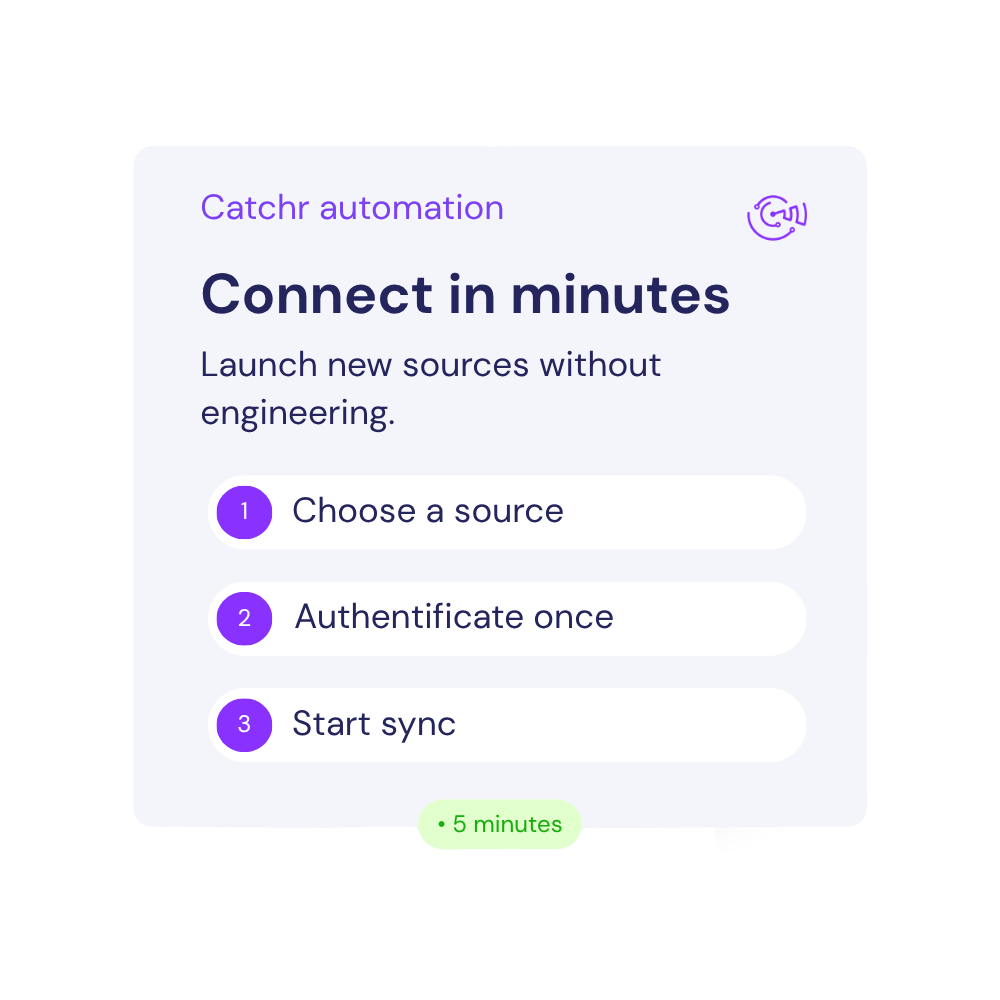
How to connect Google Analytics to ChatGPT ?

Three steps to your first source-aware prompt.

Step one

Authorize the Google Analytics account in Catchr

Select Google Analytics, sign in, and choose the client or business accounts you want to connect.

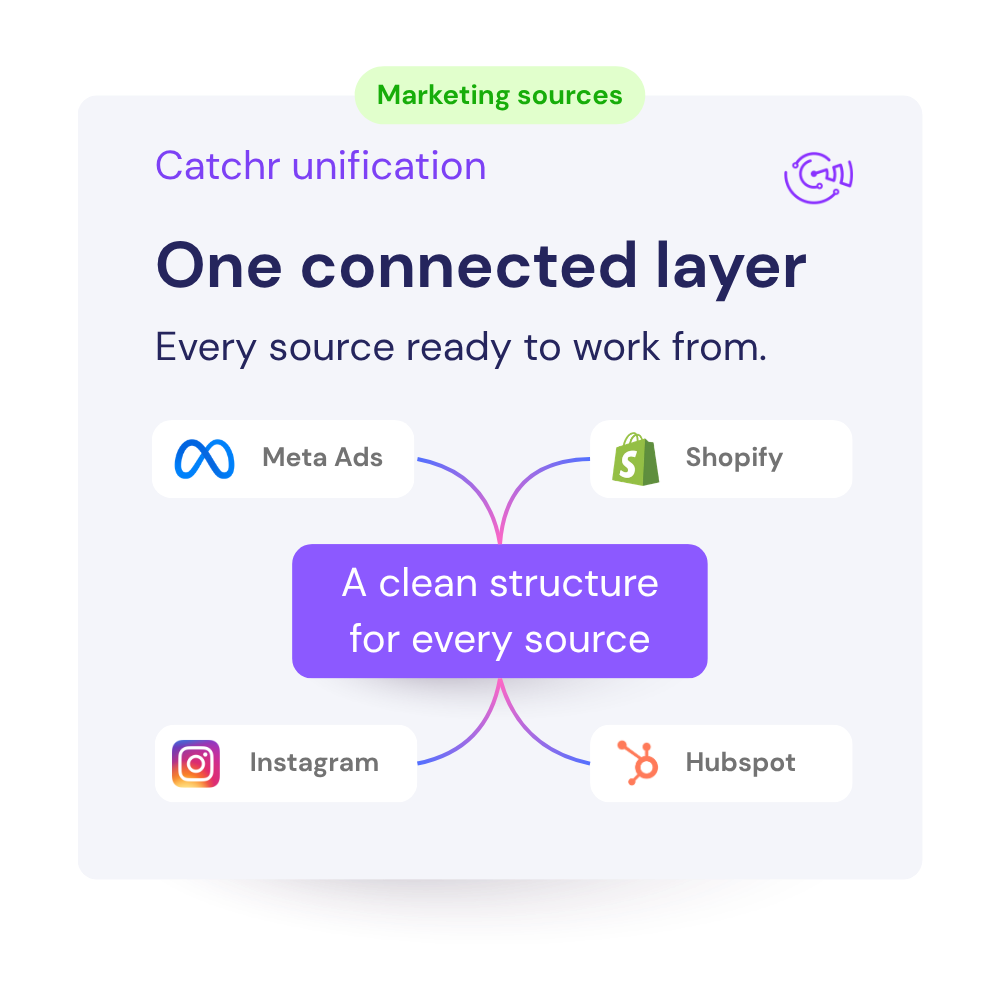
Client A · Connected sources
5 sources ready
Meta Ads 3 advertising accounts Connected
Google Ads 2 advertising accounts Connected
Google Analytics 4 1 web property Connected
HubSpot 1 CRM portal Connected
Step two

Add the Catchr MCP from official ChatGPT store

Configure the Catchr remote MCP connection in ChatGPT using the connector details from Catchr.

Step three

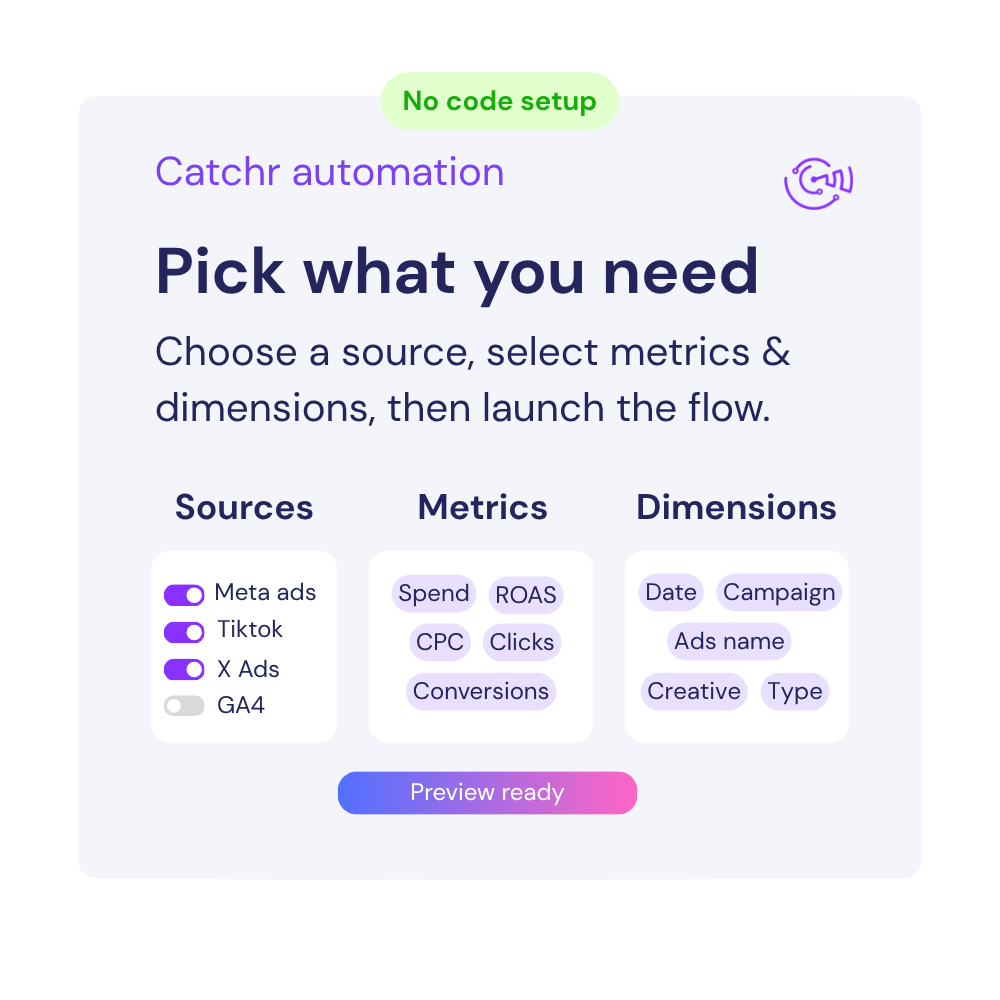
Choose, adapt, and run a prompt.

Replace account, period, KPI target, and threshold variables before you ask ChatGPT.

A simple client question should not trigger an hour of data prep.

“Why did CPA rise?” sounds simple. The answer is usually buried across exports, formulas, filters, and tabs before the analysis can even start.

Pull another CSV

Choose the right account, date range, breakdowns, and fields. Then wait for the file and do it again when the question changes.

Rebuild the context

Rename columns, fix formats, join tabs, and check formulas before you can trust the comparison.

Summarize it by hand

Turn the numbers into a client-ready answer, then repeat the whole process for the inevitable follow-up.

Ask the account. Get to the explanation.

Catchr MCP gives ChatGPT access to the marketing accounts you select, so each follow-up starts with the same marketing context instead of a new manual export.

The hard way

Prepare data before every question.

  • Export files from the marketing platform
  • Reformat and reconcile columns
  • Rebuild the analysis for each follow-up
The Catchr way

Connect once. Keep asking.

  • Select the right accounts and data
  • Ask in the language your team already uses
  • Investigate with follow-up questions

Twelve Google Analytics prompts for analyzing real account data.

Choose your role, open a workflow, then replace the bracketed variables before pasting the prompt into ChatGPT. Every prompt asks for evidence, limits, and a concrete output.

Agency promptCopy prompt
Multi-Client Analytics Morning Pulse
Using the Catchr MCP, pull Google Analytics data for [List of Client Property/Account IDs] for [Current Period, e.g., yesterday or month to date] and [Comparison Period]. For each client, review Active users, Sessions, Engagement rate, Conversions, Ecommerce purchases, Purchase revenue, and Total revenue where relevant to that client's [Primary Business Objective and KPI Targets]. Label each property Healthy, Watch, or Critical, quantify the largest change, identify the responsible Session default channel group, Session source / medium, Campaign, or Page path and screen class when the data supports it, and return a ranked consultant action list with one evidence-based next step per affected client.
Client-Ready Acquisition and Content Review
Using the Catchr MCP, analyze [Client Property/Account ID] over [Reporting Period] versus [Comparison Period]. Break down Active users, New users, Sessions, Engaged sessions, Engagement rate, Conversions, Session conversion rate, Ecommerce purchases, and Purchase revenue by Session default channel group, Session source / medium, Session campaign, and Landing page + query string. Create a client-ready report that highlights the strongest and weakest acquisition paths, explains which channels and landing experiences drove the change, separates measured evidence from hypotheses, and recommends three prioritized actions with a KPI to monitor for each.
Cross-Property Web and App Anomaly Investigator
Using the Catchr MCP, analyze daily Google Analytics data for [List of Client Property/Account IDs] over [Analysis Period, e.g., the last 30 days] against [Baseline Period]. Detect material spikes, drops, or discontinuities in Active users, Sessions, Engagement rate, Event count, Conversions, Ecommerce purchases, and Total revenue. Trace each anomaly by Stream name, Platform / device category, Country, Session source / medium, and Page path and screen class where available; quantify its timing and business impact, classify it as likely traffic mix, user-experience, campaign, or tracking related, and provide the exact validation query and client-facing action to take next.
Daily Client Analytics Priority Queue
Using the Catchr MCP, pull month-to-date Google Analytics performance for [List of Client Property/Account IDs] and compare each property with [Client-Specific Targets] and [Previous-Month-to-Date Period]. Use the KPI appropriate to each client, such as Active users, Sessions, Engagement rate, Conversions, Session conversion rate, Ecommerce purchases, or Purchase revenue. Calculate progress against the share of the month elapsed, rank clients by urgency and business impact, locate the largest measurable driver by Session source / medium, Session campaign, or Page path and screen class, and give the freelancer one concrete action and follow-up metric for every off-track client.
Monthly Website and App Performance Story
Using the Catchr MCP, create a client-ready Google Analytics report for [Client Property/Account ID] covering [Reporting Month] versus [Previous Month]. Summarize Active users, New users, Sessions, Engagement rate, Average session duration, Conversions, Session conversion rate, Ecommerce purchases, Purchase revenue, and Total revenue, then explain the most important changes by Session default channel group, Session source / medium, Stream name, and Page title and screen name. Structure the output as an executive summary, what worked, what declined, the evidence behind each conclusion, any limitation in the available data, and three plain-English priorities for [Next Month].
Landing Page and Screen Action Backlog
Using the Catchr MCP, analyze [Client Property/Account ID] over [Period] at Landing page + query string and Page path and screen class level. Compare Sessions, Active users, Engagement rate, Bounce rate, Views per session, Scrolled users, Conversions, and Session conversion rate across [Device Categories or Streams] and against [Comparison Period]. Require [Minimum Session Volume], rank pages or app screens with high traffic but weak engagement or conversion, distinguish acquisition-mix problems from on-page or in-app experience signals, and produce a prioritized optimization backlog with evidence, recommended change, and the KPI to recheck after [Test Window].
E-commerce Funnel Leak Finder
Using the Catchr MCP, pull Google Analytics data for [Store Property/Account ID] over [Period] and [Comparison Period]. Analyze Items viewed, Items added to cart, Items checked out, Items purchased, Ecommerce purchases, Purchase revenue, Cart-to-view rate, and Purchase-to-view rate by Item category, Item name, and Platform / device category. Calculate the step conversion rates where needed, identify the funnel stage and product segments responsible for the largest lost opportunity, apply [Minimum Item View or Purchase Volume], and recommend the highest-priority merchandising, checkout, or tracking action with its expected validation metric.
Profitable Acquisition Channel Optimizer
Using the Catchr MCP, analyze [Store Property/Account ID] for [Current Period] versus [Comparison Period] by Session default channel group, Session source / medium, Session campaign, and Landing page + query string. Compare Ads cost, Ads clicks, Cost per conversion, Sessions, Conversions, Ecommerce purchases, Purchase revenue, and Total revenue where populated. Against [Target Cost per Conversion or Revenue Efficiency Target] and [Minimum Volume Threshold], rank channels and campaigns to scale, hold, or investigate, quantify the revenue and conversion contribution of each, and propose a prioritized acquisition plan while flagging any source whose cost data is unavailable or incomplete.
Product and Promotion Opportunity Map
Using the Catchr MCP, pull Google Analytics product data for [Store Property/Account ID] over [Period]. Compare Item-list view events, Item-list click events, Item list click through rate, Item view events, Items added to cart, Items purchased, Item revenue, and Item promotion click through rate by Item list name, Item name, Item category, and Item promotion name where populated. Apply [Minimum Exposure Threshold], identify high-interest products that fail to convert, hidden products with strong purchase efficiency, and promotions that attract clicks without revenue, then return a ranked set of placement, promotion, and product-page tests with one success metric per test.
Event and Commerce Tracking Integrity Audit
Using the Catchr MCP, audit Google Analytics data for [Property/Account ID or All Connected Properties] over [Period] by Normalized Date, Stream name, Event name, and Platform / device category. Review Event count, Conversions, Ecommerce purchases, Transactions, Transaction ID, Purchase revenue, Add to carts, and Checkouts. Flag missing dates, abrupt event-volume breaks, conversion events with no supporting event activity, purchase revenue without transactions, transactions without identifiers, duplicate Transaction ID values, and implausible funnel relationships. Return a reproducible exception table with the failed rule, observed values, severity, whether the finding is conclusive or suspicious, and the exact instrumentation or data-layer check required next.
Daily Analytics Outlier Monitor
Using the Catchr MCP, pull at least [Lookback Period, e.g., 90 days] of daily Google Analytics data for [Property/Account ID or All Connected Properties], grouped by Normalized Date, Stream name, Session default channel group, and Platform / device category. For Active users, Sessions, Engagement rate, Event count, Conversions, Ecommerce purchases, Purchase revenue, and Total revenue, compare each day with its trailing [Baseline Window, e.g., 28 days] and flag changes beyond [Threshold, e.g., 2 standard deviations or 30%]. Apply [Minimum Volume Threshold], localize every outlier, classify it as likely data quality, traffic-mix, release, campaign, or genuine user-behavior change, and state the evidence plus the next validation query.
Acquisition Attribution and UTM Quality Audit
Using the Catchr MCP, audit acquisition reporting for [Property/Account ID or All Connected Properties] over [Period] using Session source, Session medium, Session source / medium, Session campaign, Session default channel group, Source / medium, Campaign, Ads clicks, Ads cost, Sessions, Conversions, and Purchase revenue. Quantify traffic, conversion, and revenue assigned to blank, '(not set)', direct, inconsistent, or unexpectedly fragmented source, medium, and campaign values; compare session-scoped and conversion-scoped acquisition patterns for material mismatches; and flag sustained ad cost with missing or implausibly low downstream sessions or conversions. Return a prioritized issue table with affected values, magnitude, likely tagging or attribution cause, confidence level, and the exact UTM, linking, or tracking validation step.
Replace [variables] Facts ≠ hypotheses Action + follow-up metric

Google Analytics to ChatGPT FAQs

Clear answers for marketers comparing connectors, data sources, reporting workflows, and dashboard setup.

What Google Analytics data can ChatGPT analyze through Catchr?

ChatGPT can query connected Google Analytics data for traffic, audience, acquisition, engagement, conversion, revenue, and behavioral reporting.

Representative measures include Sessions, Active users, Conversions, Total revenue, and Engagement rate. Useful breakdowns include Session source / medium, Session campaign, Default channel group, Google Ads campaign, and Region. The exact field set depends on the selected dataset and compatible reporting reporting level.

How granular can Google Analytics analysis be in ChatGPT?

The available detail depends on the fields returned for the selected dataset. Useful breakdowns include Session source / medium, Session campaign, Default channel group, Google Ads campaign, and Region.

Ask ChatGPT to state the reporting level it used and keep incompatible levels separate before calculating totals, rates, or comparisons.

Can ChatGPT explain traffic, engagement, or conversion changes in Google Analytics?

Yes. ChatGPT can compare acquisition, engagement, conversion, and revenue signals across periods and segments. Relevant fields include Sessions, Active users, Conversions, Total revenue, and Engagement rate.

Set the business target, comparison period, and minimum volume before requesting priorities or recommendations.

Can ChatGPT identify funnel and measurement issues in Google Analytics?

Yes. ChatGPT can surface funnel drop-offs, tracking gaps, unusual metric relationships, or sudden data shifts. Useful breakdowns include Session source / medium, Session campaign, Default channel group, Google Ads campaign, and Region.

Ask it to separate observed data, possible explanations, and the next validation step so an unusual value is not presented as a proven cause.

What types of prompts work best for Google Analytics analysis?

Strong prompts name the action, account or entity, date range, comparison, and KPI or threshold.

  • Monitor: “Multi-Client Analytics Morning Pulse”
  • Diagnose: “E-commerce Funnel Leak Finder”
  • Find opportunities: “Product and Promotion Opportunity Map”
  • Report: “Client-Ready Acquisition and Content Review”

Can I combine Google Analytics with other data sources in ChatGPT?

Yes, when the other sources are also connected to Catchr. Useful combinations include advertising, commerce, CRM, email, or finance sources.

Align dates, currencies, identifiers, and definitions first. If the sources cannot be joined reliably, ask for a side-by-side comparison rather than a single attributed result.

Can I analyze multiple accounts, properties, sites, or apps together?

Yes, provided each one is connected and available through Catchr MCP. Ask for separate results first, then create the combined view.

Specify the property, timezone, attribution rules, event definitions, period, and KPI target. This keeps one large entity or a definition mismatch from distorting the comparison.

What do I need to connect Google Analytics to ChatGPT with Catchr?

You need access that can authorize and view the relevant Google Analytics data, a Catchr workspace with the source connected, and Catchr MCP enabled in ChatGPT.

After selecting the required entities, you can ask questions in natural language without preparing a new CSV export for each analysis.

How recent is the Google Analytics data, and how much history can I analyze?

ChatGPT analyzes the records returned through the connected Catchr source; it should not assume the data is real time. Freshness and historical coverage can vary by dataset, field, selected period, and source API limits.

Ask it to state the latest session, event, page, call, or reporting date, together with the timezone, requested period, and any missing intervals before interpreting a trend.

Can ChatGPT change anything in Google Analytics through Catchr?

No. Catchr MCP provides Google Analytics data for analysis; it does not give ChatGPT permission to change tracking, events, properties, goals, or analytics settings.

Use the result to prepare an action plan, then make operational changes in Google Analytics. Review the supporting figures before acting on the recommendation.

How much does it cost to connect marketing data to ChatGPT with Catchr?

Catchr MCP is included in every standard plan—there is no separate fee for the ChatGPT integration. The Starter plan begins at $20 per month when billed annually, or $24 when billed monthly.

It includes 3 platforms, 10 accounts, unlimited users, and unlimited requests. Larger plans increase the number of platforms and accounts available. See Catchr pricing

‍Can I try the ChatGPT integration before choosing a plan?

Yes. Catchr offers a 14-day free trial with no credit card required.

You can use the trial to connect your marketing sources, authorize Catchr MCP in ChatGPT, and test questions using your own data before subscribing.

Still have a question ? 

Our teams is always here to responds to any question you could have about our data connector. 

Ask the account question before building another export.

Connect yout marketing platform to ChatGPT with Catchr MCP and start investigating current campaign performance.

14 days free-trial
No credit-card required
100+ sources