Many marketing platforms generate recurring exports, such as weekly performance reports or monthly SEO data. When each new export replaces the previous file, maintaining a Power BI report quickly becomes tedious. Power BI can connect to an entire folder, not just a single file, allowing you to automate updates by simply adding new exports to the same location.
In this article, you’ll learn how folder connections work, when to use them, and how they help automate recurring marketing reporting.
Why connecting a folder in Power BI changes everything
Connecting a folder fundamentally changes how you think about reporting. Instead of rebuilding or re-importing data every time a new export is available, you create one report that automatically includes all files placed in a specific location.
For marketing teams, this is especially useful for recurring exports such as weekly Google Analytics reports, monthly paid ads performance, or SEO data split by period. The report becomes stable, while the data evolves over time.
How to connect a folder in Power BI
Folder connections are surprisingly simple to set up, as long as the files inside the folder follow the same structure.
Step-by-step: connect a folder in Power BI
To connect a folder, all files inside it must use the same format, such as CSV or XLSX. Once this is ensured, open Power BI Desktop and start the folder connection process:
- Click Get Data
- Then choose Folder.
- Select the folder that contains your exports.
- Click Combine and Load (or Combine and Transform) data.
Power BI will list all files found in that folder and propose to combine them. When you confirm, Power BI automatically appends the data from all files into a single table.
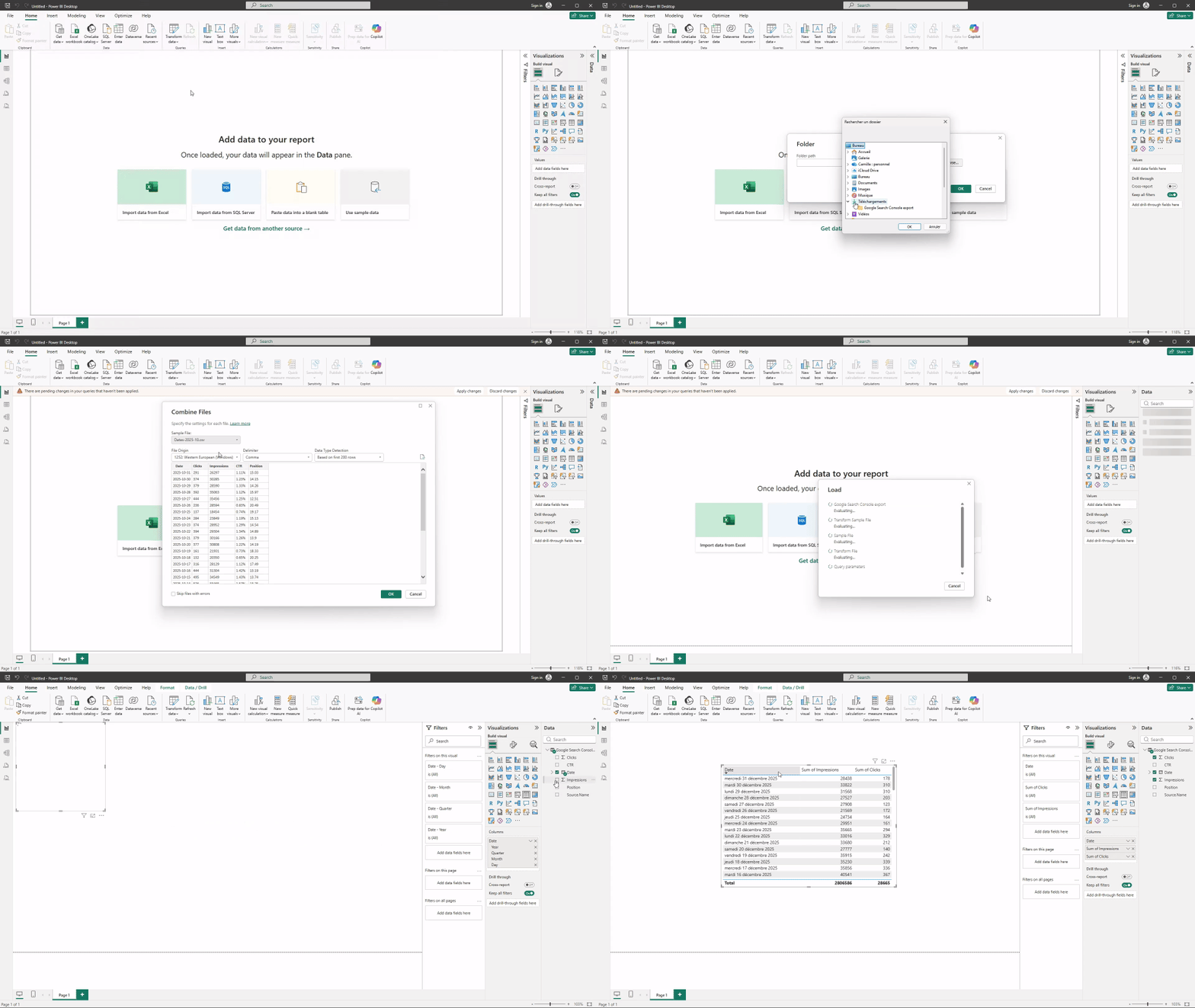
Once loaded, your report is connected to the folder itself, not to individual files.
When folder connections make sense
Connecting a folder works well when all files:
- Come from the same platform or export logic
- Share the same columns and data types
- Represent the same type of data over time
If file structures change from one export to another, Power BI won’t be able to combine them reliably.
Automating weekly or monthly updates with folder patterns
Once a folder connection is in place, adding new data becomes very simple.
How Power BI handles new files
When you drop a new file into the connected folder and refresh the report, Power BI automatically detects the new file and appends its data to the existing dataset. Older files remain included, and no manual changes are required in the report.
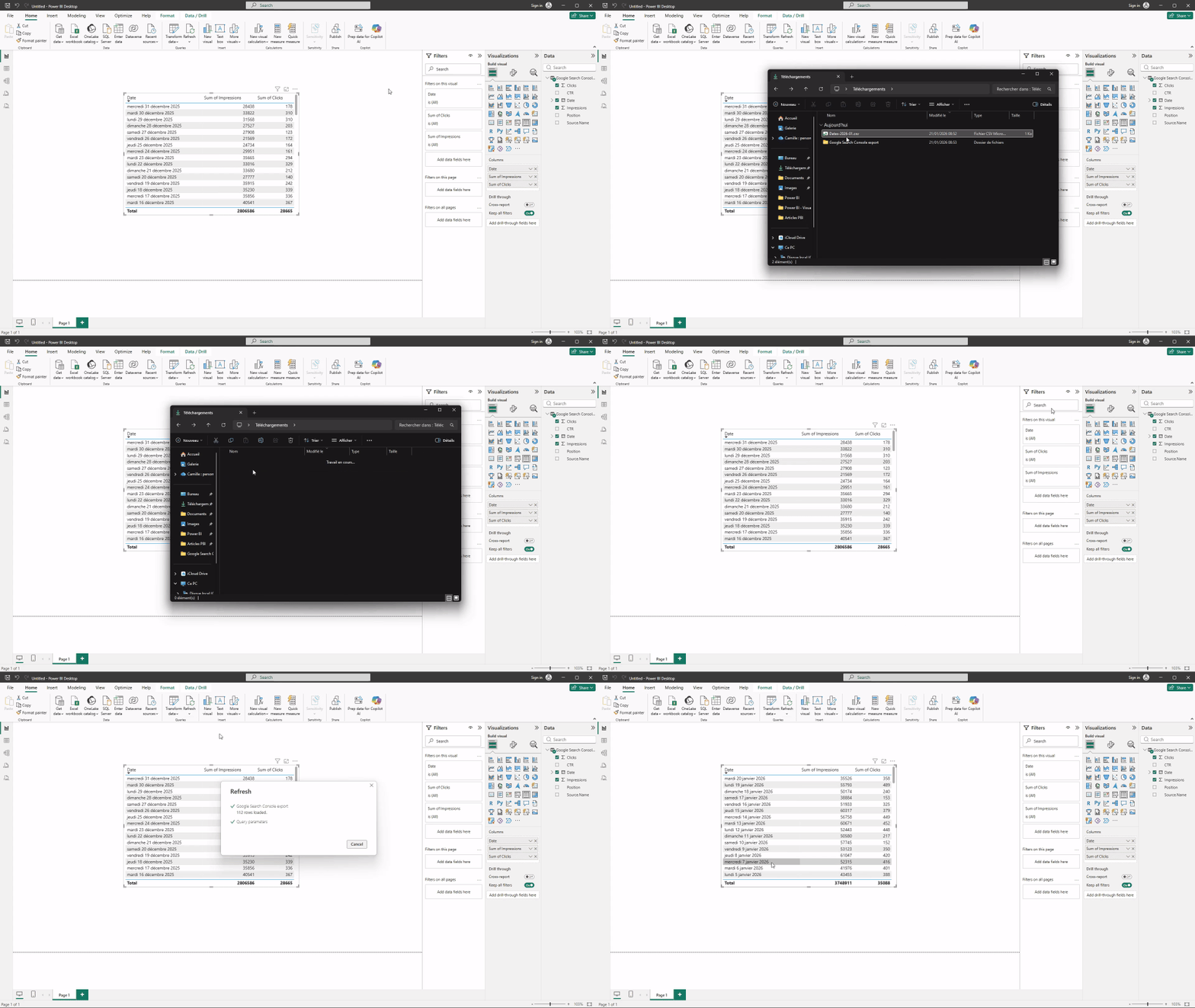
This makes folder connections ideal for recurring updates.
Naming conventions that make automation work
To keep folder-based automation reliable, naming conventions matter. A good practice is to use one file per period, with a consistent and descriptive name.
For example, exports like ga4_user_acquisition_2024_01.csv, ga4_user_acquisition_2024_02.csv, and so on make it easy to track data over time while keeping the structure unchanged.
Avoid renaming columns or changing formats between exports, as this can break the refresh process.
Common mistakes when connecting folders
Folder connections are powerful, but a few mistakes can cause issues. Mixing files with different structures, renaming columns over time, or deleting older files without understanding their role can break reports or change historical results.
Another common mistake is editing the combined query without understanding its impact, which can lead to confusing errors later.
Keeping file structure stable and changes intentional is key.
When folder-based automation is not enough
Folder connections are a major step forward compared to manual file replacement, but they still rely on exports and local file management. When reporting involves many platforms, frequent updates, or shared dashboards across teams, this approach can start to feel limiting.
At that point, fully automated data pipelines and connectors become the natural next step.
Moving from file-based automation to fully automated data pipelines
Folder connections help reduce manual work, but they still require managing exports and files over time. When reporting needs grow and teams want more autonomy over their data, automated connectors become a natural next step. Solutions like Catchr handle data collection and refresh from multiple marketing platforms and send ready-to-use datasets directly to Power BI, removing the need for folders altogether.
Conclusion
Connecting a folder in Power BI is one of the most effective ways for marketing teams to automate recurring reporting without adding complexity. It removes repetitive manual work, keeps reports stable over time, and prepares teams for more advanced automation. When used with consistent exports and simple conventions, folder connections offer a powerful bridge between manual reporting and fully automated data workflows.