
Marketing data rarely lives in a single dataset. Performance data may come from multiple exports, accounts, or platforms, while contextual information often lives elsewhere. Power Query offers two ways to combine datasets, but they serve very different purposes.
Understanding the difference between append and merge is essential to avoid broken models, duplicated rows, or misleading KPIs. This article explains both concepts clearly, shows when to use each one, and walks through how to apply them in Power Query.
Two ways to combine datasets in Power Query
A simple way to remember the difference:
- Append = add rows
- Merge = add columns
If you keep this mental model in mind, most decisions become straightforward.
Append queries: stack similar datasets
Appending datasets means placing one dataset on top of another. The structure stays the same, but the number of rows increases.
Typical marketing use cases
- Monthly or weekly exports of the same report
- Combining data from multiple ad accounts of the same platform
- Merging historical data with recent data
Example: Meta Ads performance for January + Meta Ads performance for February.
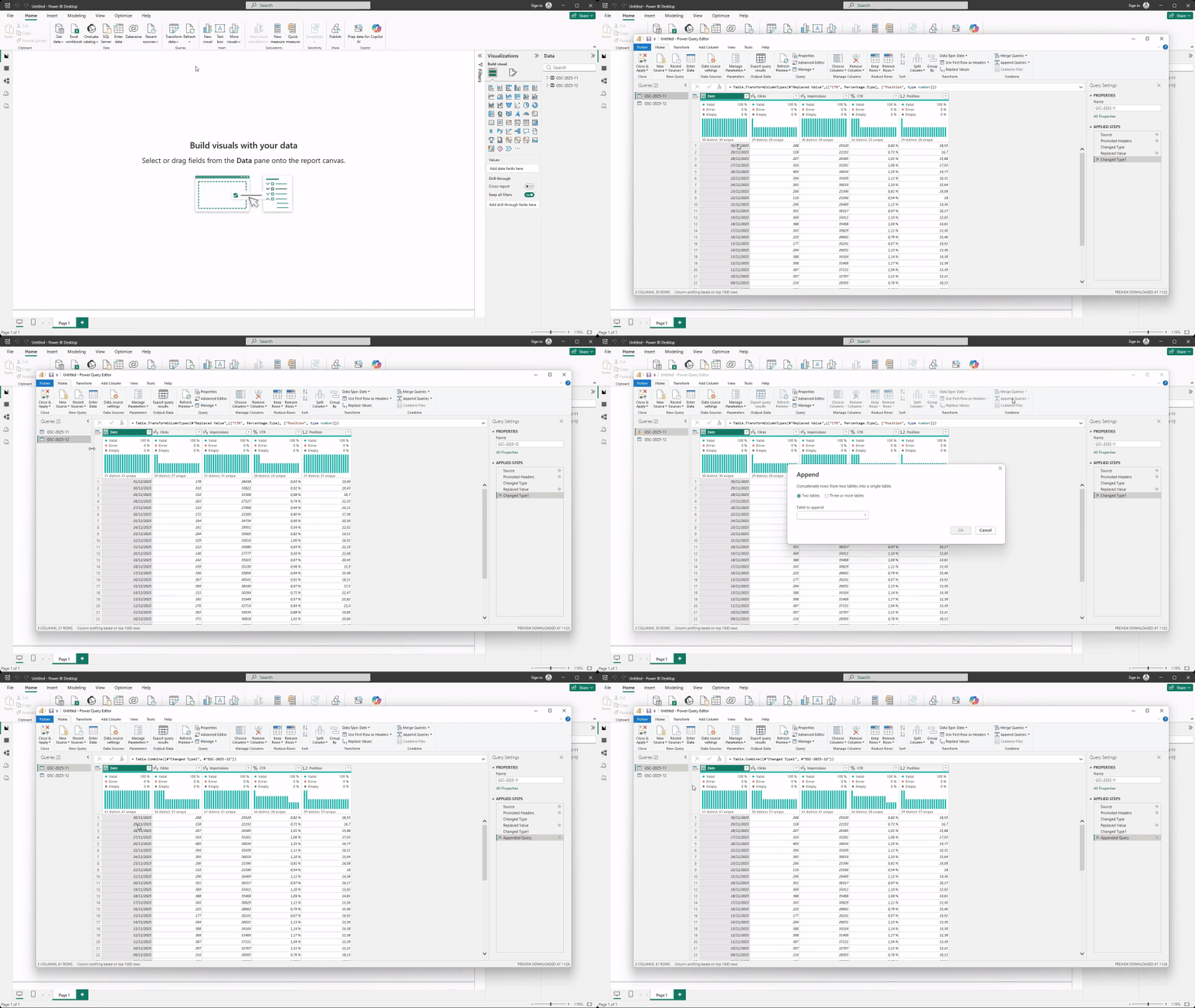
How to append queries (quick steps)
- Open Transform data to access Power Query
- Go to Home > Append Queries
- Choose the tables you want to append
- Validate that columns align correctly
- Apply changes
Merge queries: enrich a dataset with additional information
Merging datasets means adding columns from one dataset into another, based on a shared key.
Typical marketing use cases
- Adding campaign metadata to performance data
- Joining CRM revenue to leads or conversions
- Mapping IDs to readable labels (country codes, channel names)
Example: Meta Ads performance + a campaign mapping table.
How to merge queries (quick steps)
- Open Transform data
- Select the main query
- Click Merge Queries
- Select the second table
- Choose the matching column (key) by clicking on them
- Select the join type (usually Left Outer)
- Expand the merged columns
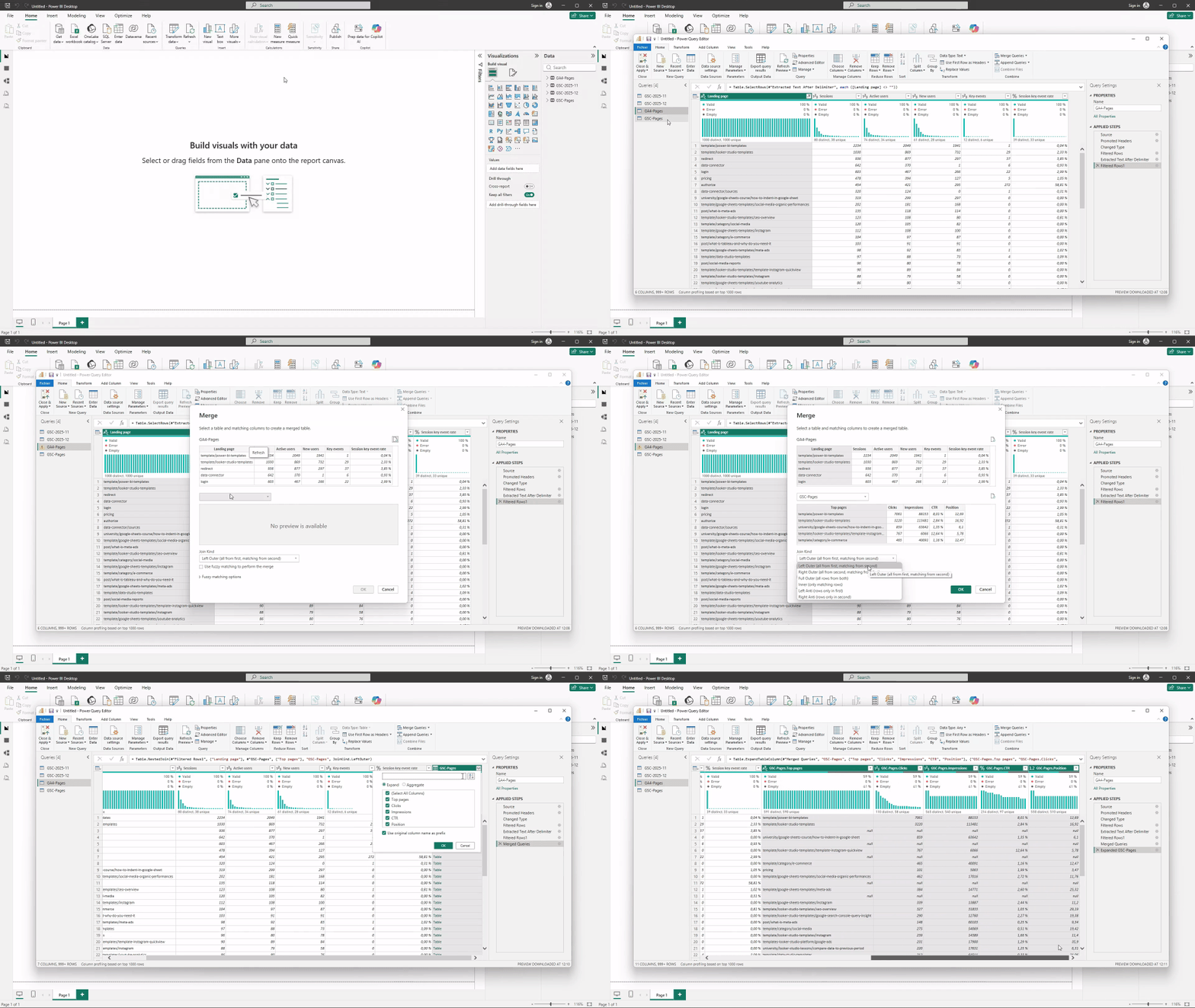
In this example, we merged Google Search Console data into a Google Analytics 4 dataset using the landing page path as the matching key. This adds Search Console metrics such as Impressions, Clicks, CTR, and Average Position as new columns in the GA4 table when the landing page matches.
When to use append vs merge
Common mistakes
Some errors happen very frequently:
- Appending datasets with different column structures
- Merging datasets without a reliable key
- Creating duplicate rows through incorrect merge logic
- Using merge when append was the correct choice
These mistakes don’t always trigger errors, but they often lead to incorrect totals and misleading dashboards.
Conclusion
Append and merge are foundational Power Query concepts for marketing reporting. Append helps you scale data over time or across accounts, while merge helps you enrich datasets with additional context. Choosing the right method keeps your data model clean, your KPIs accurate, and your dashboards reliable. Once this distinction is clear, combining marketing datasets in Power BI becomes much more intuitive.