Home > Destinations > ChatGPT > Microsoft Ads

Connect Microsoft Ads to ChatGPT

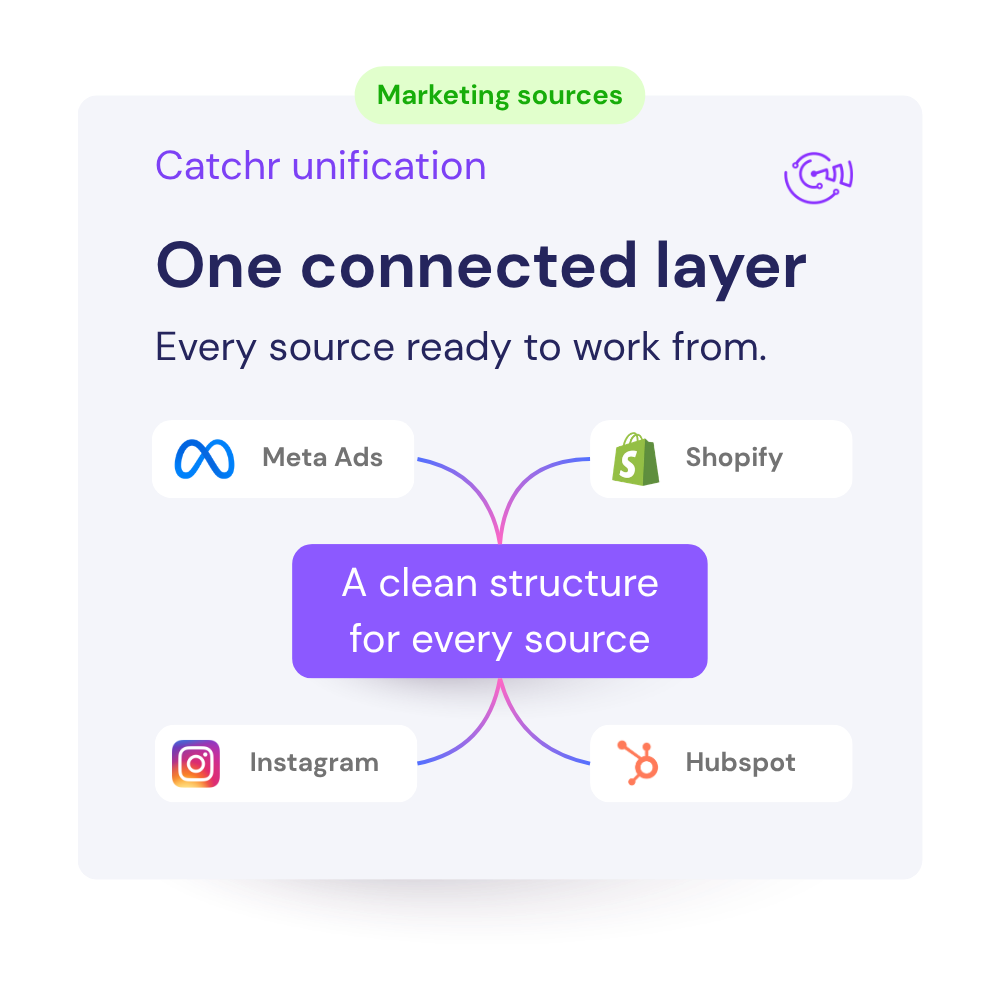
Connect Microsoft Ads to ChatGPT and ask about any metrics or dimensions using current integrations data. No CSV exports or manual campaign summaries.

Looker Studio
Power BI
Google Sheets
BigQuery
Snowflake

Trusted by marketing teams that talk to data everyday

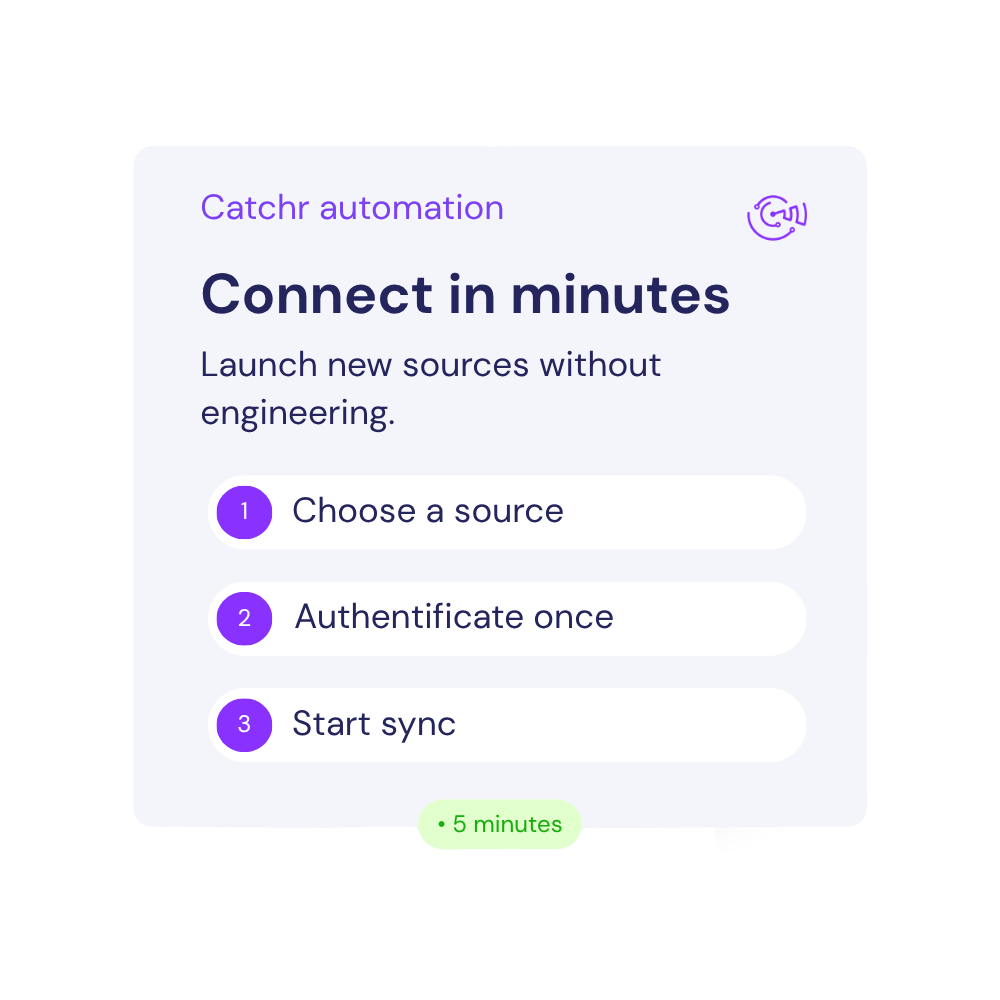
How to connect Microsoft Ads to ChatGPT ?

Three steps to your first source-aware prompt.

Step one

Authorize the Microsoft Ads account in Catchr

Select Microsoft Ads, sign in, and choose the client or business accounts you want to connect.

Client A · Connected sources
5 sources ready
Meta Ads 3 advertising accounts Connected
Google Ads 2 advertising accounts Connected
Google Analytics 4 1 web property Connected
HubSpot 1 CRM portal Connected
Step two

Add the Catchr MCP from official ChatGPT store

Configure the Catchr remote MCP connection in ChatGPT using the connector details from Catchr.

Step three

Choose, adapt, and run a prompt.

Replace account, period, KPI target, and threshold variables before you ask ChatGPT.

A simple client question should not trigger an hour of data prep.

“Why did CPA rise?” sounds simple. The answer is usually buried across exports, formulas, filters, and tabs before the analysis can even start.

Pull another CSV

Choose the right account, date range, breakdowns, and fields. Then wait for the file and do it again when the question changes.

Rebuild the context

Rename columns, fix formats, join tabs, and check formulas before you can trust the comparison.

Summarize it by hand

Turn the numbers into a client-ready answer, then repeat the whole process for the inevitable follow-up.

Ask the account. Get to the explanation.

Catchr MCP gives ChatGPT access to the marketing accounts you select, so each follow-up starts with the same marketing context instead of a new manual export.

The hard way

Prepare data before every question.

  • Export files from the marketing platform
  • Reformat and reconcile columns
  • Rebuild the analysis for each follow-up
The Catchr way

Connect once. Keep asking.

  • Select the right accounts and data
  • Ask in the language your team already uses
  • Investigate with follow-up questions

Twelve Microsoft Ads prompts for analyzing real account data.

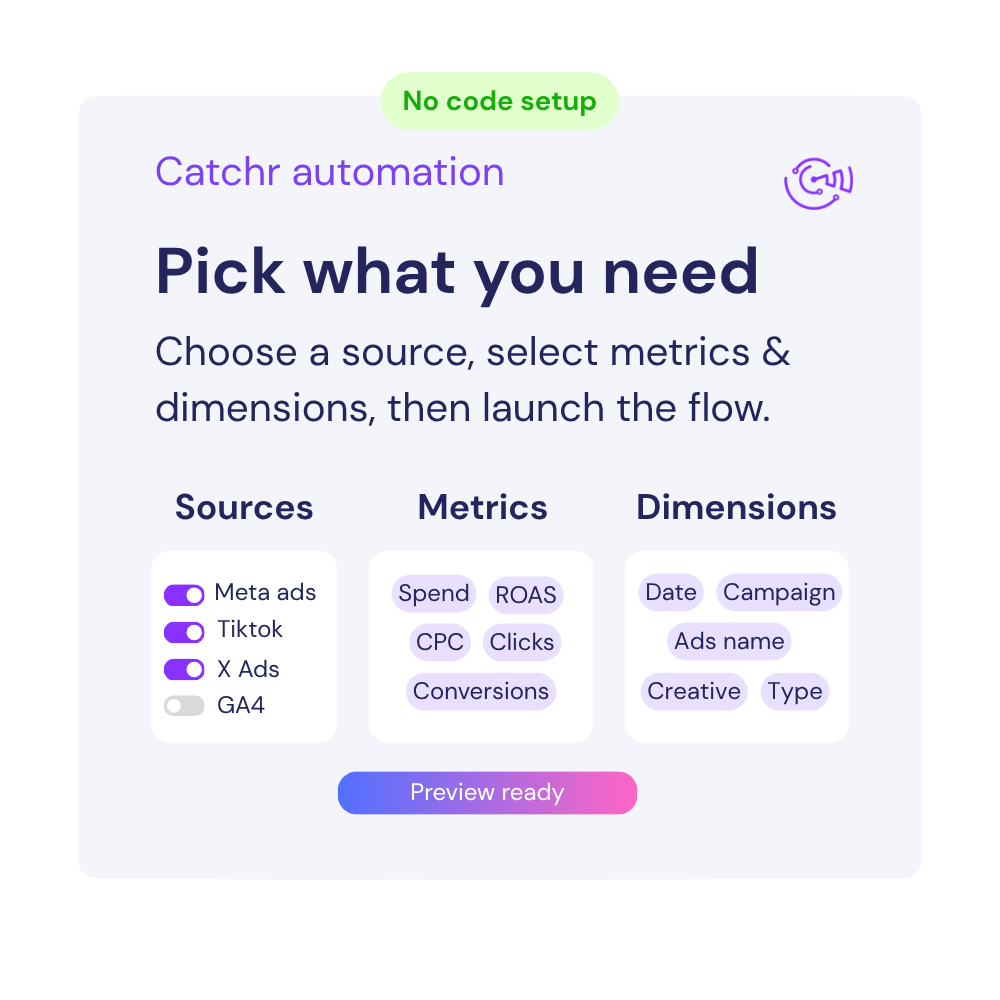
Choose your role, open a workflow, then replace the bracketed variables before pasting the prompt into ChatGPT. Every prompt asks for evidence, limits, and a concrete output.

Agency promptCopy prompt
Cross-Account Search and Shopping Triage
Using the Catchr MCP, pull Microsoft Ads data for [List of Client Account Names/IDs] over [Current Period, e.g., today or the last 7 days] and compare it with [Comparable Baseline Period]. At Account Name, Campaign Name, and Campaign Type level, review Spend, Impressions, Clicks, Ctr, CPC, Conversions, Cost Per Conversion, Revenue, and Return On Ad Spend against [Client-Specific KPI Targets]. For affected Search campaigns, inspect Search Query, Keyword, Delivered Match Type, Impression Share Percent, Impression Lost To Budget Percent, and Impression Lost To Rank Agg Percent; for Shopping campaigns, inspect Merchant Product Id and Product Group. Label every account Healthy, Watch, or Critical, explain the measurable driver, and return a ranked morning action queue with one concrete next step per client.
Client-Ready Microsoft Ads Weekly Brief
Using the Catchr MCP, analyze Microsoft Ads performance for [Client Account Name/ID] over [Reporting Period] versus [Comparison Period]. Break down Spend, Impressions, Clicks, Ctr, CPC, Conversions, Conversion Rate, Cost Per Conversion, Revenue, and Return On Ad Spend by Campaign Name, Campaign Type, Device Type, and Network. Add a Search section using Search Query, Keyword, Quality Score, and Top Impression Share Percent, and a Shopping section using Merchant Product Id, Product Group, Product Category1, and Product Type1 where populated. Produce a client-ready brief with an executive summary, wins, risks, confirmed drivers, data limitations, and three prioritized actions for [Next Period].
Portfolio Budget Reallocation Planner
Using the Catchr MCP, evaluate [List of Client Account Names/IDs] over [Analysis Period] and [Comparison Period] to identify where Microsoft Ads budget should be protected, reduced, or expanded. Rank Account Name, Campaign Name, and Campaign Type combinations by Spend, Conversions, Cost Per Conversion, Revenue, and Return On Ad Spend, applying [Minimum Spend or Conversion Threshold] and each client's [Target CPA or ROAS]. Trace Search waste to Search Query, Keyword, Bid Match Type, and Quality Score, and Shopping opportunities to Merchant Product Id, Product Group, Benchmark Bid, and Benchmark Ctr. Return a client-by-client reallocation plan with the amount or percentage to move, supporting evidence, expected KPI impact, and a clear distinction between observed facts and hypotheses.
Morning Client Priority Queue
Using the Catchr MCP, pull month-to-date Microsoft Ads data for [List of Client Account Names/IDs] and compare each client with [Monthly Budget and KPI Targets], [Previous-Month-to-Date Period], and the share of the month elapsed. Use Month To Date Spend, Monthly Budget, Conversions, Cost Per Conversion, Revenue, and Return On Ad Spend, then trace the largest gap to Campaign Name and Campaign Type. For Search, inspect Impression Lost To Budget Percent versus Impression Lost To Rank Agg Percent; for Shopping, inspect Merchant Product Id and Product Group. Rank the clients the freelancer should work on today and give one concise issue, one evidence-backed action, and one follow-up KPI for every off-track account.
Monthly Microsoft Ads Client Story
Using the Catchr MCP, create a client-ready Microsoft Ads report for [Client Account Name/ID] covering [Current Month] versus [Previous Month]. Summarize Spend, Impressions, Clicks, Ctr, CPC, Conversions, Conversion Rate, Cost Per Conversion, Revenue, and Return On Ad Spend, then explain the largest changes by Campaign Name, Campaign Type, Device Type, and Network. Include one Search insight using Search Query, Keyword, or Quality Score and one Shopping insight using Merchant Product Id, Product Group, or Product Category1 when those campaign types are present. Write in plain English with an executive summary, what worked, what underperformed, the evidence behind each conclusion, unresolved questions, and three priorities for [Next Month].
Two-Hour Optimization Sprint
Using the Catchr MCP, inspect Microsoft Ads data for [Client Account Name/ID] over [Analysis Period] and build a prioritized work plan that fits [Available Time, e.g., two hours]. For Search, evaluate Search Query, Keyword, Delivered Match Type, Quality Score, Landing Page Experience, Impression Lost To Budget Percent, and Impression Lost To Rank Agg Percent; for Shopping, evaluate Merchant Product Id, Product Group, Benchmark Bid, and Benchmark Ctr. Score opportunities using Spend, Clicks, Conversions, Cost Per Conversion, Revenue, and Return On Ad Spend with [Minimum Data Threshold], then return tasks ordered by expected value with the exact action, supporting evidence, estimated effort, client-safe rationale, and metric to monitor.
Shopping Product Profitability Matrix
Using the Catchr MCP, pull Microsoft Shopping campaign data for [E-commerce Account Name/ID] over [Period] and [Comparison Period], grouped by Merchant Product Id, Product Group, Product Category1, Product Type1, Country Of Sale, and Campaign Name. Evaluate Spend, Impressions, Clicks, Ctr, CPC, Conversions, Cost Per Conversion, Revenue, and Return On Ad Spend against [Target ROAS or CPA] and [Minimum Data Threshold]. Classify each product or group as Scale, Maintain, Fix, or Exclude, quantify the period-over-period change, identify products consuming spend without sufficient return, and provide a prioritized merchandising, bid, or campaign action for the top [Number] opportunities.
Search Query Growth and Waste Miner
Using the Catchr MCP, analyze Microsoft Ads Search performance for [E-commerce Account Name/ID] over [Period], grouped by Campaign Name, Ad Group Name, Search Query, Keyword, Bid Match Type, and Delivered Match Type. Use Spend, Impressions, Clicks, Ctr, CPC, Conversions, Cost Per Conversion, Revenue, Return On Ad Spend, Quality Score, and Landing Page Experience, with [Minimum Click or Spend Threshold] and [Target CPA or ROAS]. Return three evidence-based lists: queries to add as keywords, queries to review as Negative Keywords, and high-intent themes for new ad groups or Shopping feed alignment. Show the supporting metrics and proposed match type for every action, and label low-volume findings as tests rather than conclusions.
Search and Shopping Revenue Guardrail
Using the Catchr MCP, pull daily Microsoft Ads results for [E-commerce Account Name/ID] over [Current Period] and [Comparison Period], split by Campaign Type and Campaign Name. Track Spend, Conversions, Conversion Rate, Cost Per Conversion, Revenue, and Return On Ad Spend against [Daily or Monthly Revenue Target]. For Search, add Impression Share Percent, Impression Lost To Budget Percent, and Impression Lost To Rank Agg Percent; for Shopping, drill into Merchant Product Id and Product Group. Identify whether any revenue decline comes from lost demand, auction visibility, traffic efficiency, conversion efficiency, or a specific product group, then recommend one immediate action and the metric to recheck after [Validation Window].
Conversion and Revenue Integrity Audit
Using the Catchr MCP, audit Microsoft Ads conversion reporting for [Account Name/ID or All Connected Accounts] over [Period] at Normalized Date, Account Id, Campaign Id, Campaign Name, Goal, and Goal Type level. Compare Conversions with All Conversions, Conversion Rate with All Conversion Rate, Cost Per Conversion with All Cost Per Conversion, Revenue with All Revenue, and Return On Ad Spend with All Return On Ad Spend; review View Through Conversions separately. Flag missing dates or identifiers, Spend with prolonged zero conversions, conversions with zero revenue where value is expected, impossible negative values, and abrupt breaks in goal-level coverage. Return an exception table with the failed rule, observed values, severity, whether the evidence is conclusive or suspicious, and the next validation step outside Catchr when required.
Ninety-Day Performance Outlier Monitor
Using the Catchr MCP, pull at least [Lookback Period, e.g., 90 days] of daily Microsoft Ads data for [Account Name/ID or All Connected Accounts], grouped by Normalized Date, Account Name, Campaign Name, Campaign Type, Device Type, and Network. For Spend, Impressions, Clicks, Conversions, and Revenue, compare each day with its trailing [Baseline Window, e.g., 30-day] mean and standard deviation; derive Ctr, CPC, Conversion Rate, Cost Per Conversion, and Return On Ad Spend from summed base values when aggregating. Flag deviations beyond [Z-Score Threshold, e.g., 2] only after [Minimum Volume Threshold] is met, trace each outlier to Search Query, Keyword, Merchant Product Id, or Product Group where possible, and classify it as likely data quality, mix shift, auction pressure, or genuine performance change with a reproducible next check.
Search and Shopping Rollup Reconciliation
Using the Catchr MCP, validate Microsoft Ads reporting consistency for [Account Name/ID or All Connected Accounts] over [Period]. Build independent rollups of Spend, Impressions, Clicks, Conversions, and Revenue by Account Id, Campaign Id, Campaign Name, and Campaign Type, then reconcile them separately against Device Type and Network breakdowns; do not sum overlapping segmented extracts together. For Search campaigns, test coverage and key completeness for Search Query, Keyword Id, and Delivered Match Type; for Shopping campaigns, test Merchant Product Id, Product Group, Product Category1, and Product Type1 coverage. Report absolute and percentage discrepancies beyond [Tolerance], duplicate or missing identifiers, null-heavy fields, and a remediation plan that preserves raw extracts and documents every assumption.
Replace [variables] Facts ≠ hypotheses Action + follow-up metric

Microsoft Ads to ChatGPT FAQs

Clear answers for marketers comparing connectors, data sources, reporting workflows, and dashboard setup.

What Microsoft Ads data can ChatGPT analyze through Catchr?

ChatGPT can query connected Microsoft Ads data for campaign delivery, spend, conversion, and revenue reporting.

Representative measures include Spend, Impressions, Clicks, CTR, and Conversions. Useful breakdowns include Campaign Name, Merchant Product ID, Product Group, and Country of Sale. The exact field set depends on the selected dataset and compatible reporting reporting level.

How granular can Microsoft Ads analysis be in ChatGPT?

The available detail depends on the fields returned for the selected dataset. Useful breakdowns include Campaign Name, Merchant Product ID, Product Group, and Country of Sale.

Ask ChatGPT to state the reporting level it used and keep incompatible levels separate before calculating totals, rates, or comparisons.

Can ChatGPT find efficiency and budget opportunities in Microsoft Ads?

Yes. ChatGPT can compare campaign and product-group performance against your ROAS, CPA, and volume targets. Relevant fields include Spend, Impressions, Clicks, CTR, and Conversions.

Set the business target, comparison period, and minimum volume before requesting priorities or recommendations.

Can ChatGPT diagnose targeting, creative, or conversion issues in Microsoft Ads?

Yes. ChatGPT can identify products, campaigns, or markets consuming spend without sufficient return. Useful breakdowns include Campaign Name, Merchant Product ID, Product Group, and Country of Sale.

Ask it to separate observed data, possible explanations, and the next validation step so an unusual value is not presented as a proven cause.

What types of prompts work best for Microsoft Ads analysis?

Strong prompts name the action, account or entity, date range, comparison, and KPI or threshold.

  • Monitor: “Ninety-Day Performance Outlier Monitor”
  • Diagnose: “Conversion and Revenue Integrity Audit”
  • Find opportunities: “Portfolio Budget Reallocation Planner”
  • Report: “Client-Ready Microsoft Ads Weekly Brief”

Can I combine Microsoft Ads with other data sources in ChatGPT?

Yes, when the other sources are also connected to Catchr. Useful combinations include analytics, commerce, CRM, or other advertising sources.

Align dates, currencies, identifiers, and definitions first. If the sources cannot be joined reliably, ask for a side-by-side comparison rather than a single attributed result.

Can I analyze multiple accounts or campaigns together?

Yes, provided each one is connected and available through Catchr MCP. Ask for separate results first, then create the combined view.

Specify the currency, timezone, objective, attribution window, and KPI target. This keeps one large entity or a definition mismatch from distorting the comparison.

What do I need to connect Microsoft Ads to ChatGPT with Catchr?

You need access that can authorize and view the relevant Microsoft Ads data, a Catchr workspace with the source connected, and Catchr MCP enabled in ChatGPT.

After selecting the required entities, you can ask questions in natural language without preparing a new CSV export for each analysis.

How recent is the Microsoft Ads data, and how much history can I analyze?

ChatGPT analyzes the records returned through the connected Catchr source; it should not assume the data is real time. Freshness and historical coverage can vary by dataset, field, selected period, and source API limits.

Ask it to state the latest campaign or reporting date and the attribution window used, together with the timezone, requested period, and any missing intervals before interpreting a trend.

Can ChatGPT change anything in Microsoft Ads through Catchr?

No. Catchr MCP provides Microsoft Ads data for analysis; it does not give ChatGPT permission to change campaigns, bids, budgets, targeting, or ads.

Use the result to prepare an action plan, then make operational changes in Microsoft Ads. Review the supporting figures before acting on the recommendation.

How much does it cost to connect marketing data to ChatGPT with Catchr?

Catchr MCP is included in every standard plan—there is no separate fee for the ChatGPT integration. The Starter plan begins at $20 per month when billed annually, or $24 when billed monthly.

It includes 3 platforms, 10 accounts, unlimited users, and unlimited requests. Larger plans increase the number of platforms and accounts available. See Catchr pricing

‍Can I try the ChatGPT integration before choosing a plan?

Yes. Catchr offers a 14-day free trial with no credit card required.

You can use the trial to connect your marketing sources, authorize Catchr MCP in ChatGPT, and test questions using your own data before subscribing.

Still have a question ? 

Our teams is always here to responds to any question you could have about our data connector. 

Ask the account question before building another export.

Connect yout marketing platform to ChatGPT with Catchr MCP and start investigating current campaign performance.

14 days free-trial
No credit-card required
100+ sources