How report publication works in Looker Studio
Looker Studio reports are collaborative by design. Multiple editors can work on the same dashboard, and viewers can access it at any time. This makes it ideal for shared reporting, but it also introduces a risk. By default, every edit is applied immediately to the live report.
When a report is actively used by clients, managers, or operational teams, pushing changes in real time is rarely desirable. A small adjustment, a test calculation, or a layout tweak can disrupt interpretation or raise unnecessary questions.
To avoid this, Looker Studio offers a controlled publishing workflow. It allows editors to work on changes privately and decide exactly when those changes are released to viewers.
What manual publication changes in Looker Studio
When manual publication is enabled, a report no longer updates automatically for viewers.
Instead, Looker Studio separates the report into two states:
- a live version visible to viewers
- a working version where editors can make changes freely
Nothing reaches the live report until an editor explicitly publishes it.
When manual publication makes sense
Manual publication is recommended when:
- a report is shared with external stakeholders or clients
- dashboards are used for recurring reviews or decision making
- several editors collaborate on the same report
- changes must be reviewed before being exposed
Enabling manual publication in Looker Studio
Manual publication is configured at the report level.
.gif)
Steps
- Open the report in Edit mode.
- Open the File menu.
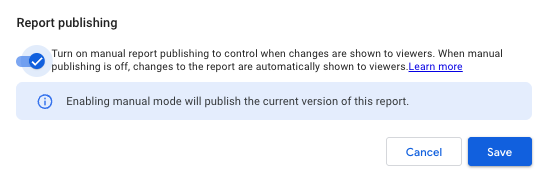
- Select Publishing settings.
- Enable Manual publication.
- Save the setting.
From this point on, edits remain private until they are published.
Understanding report states
Once manual publication is active, Looker Studio clearly separates versions.

Live version
- This is the version visible to viewers.
- It only changes when an editor publishes updates.
Draft version
- This contains all unpublished edits.
- Only editors can see it.
- It may differ significantly from the live version.

Reviewing changes before publishing
Editors can review unpublished changes under the same conditions as the live report.
How to preview the draft
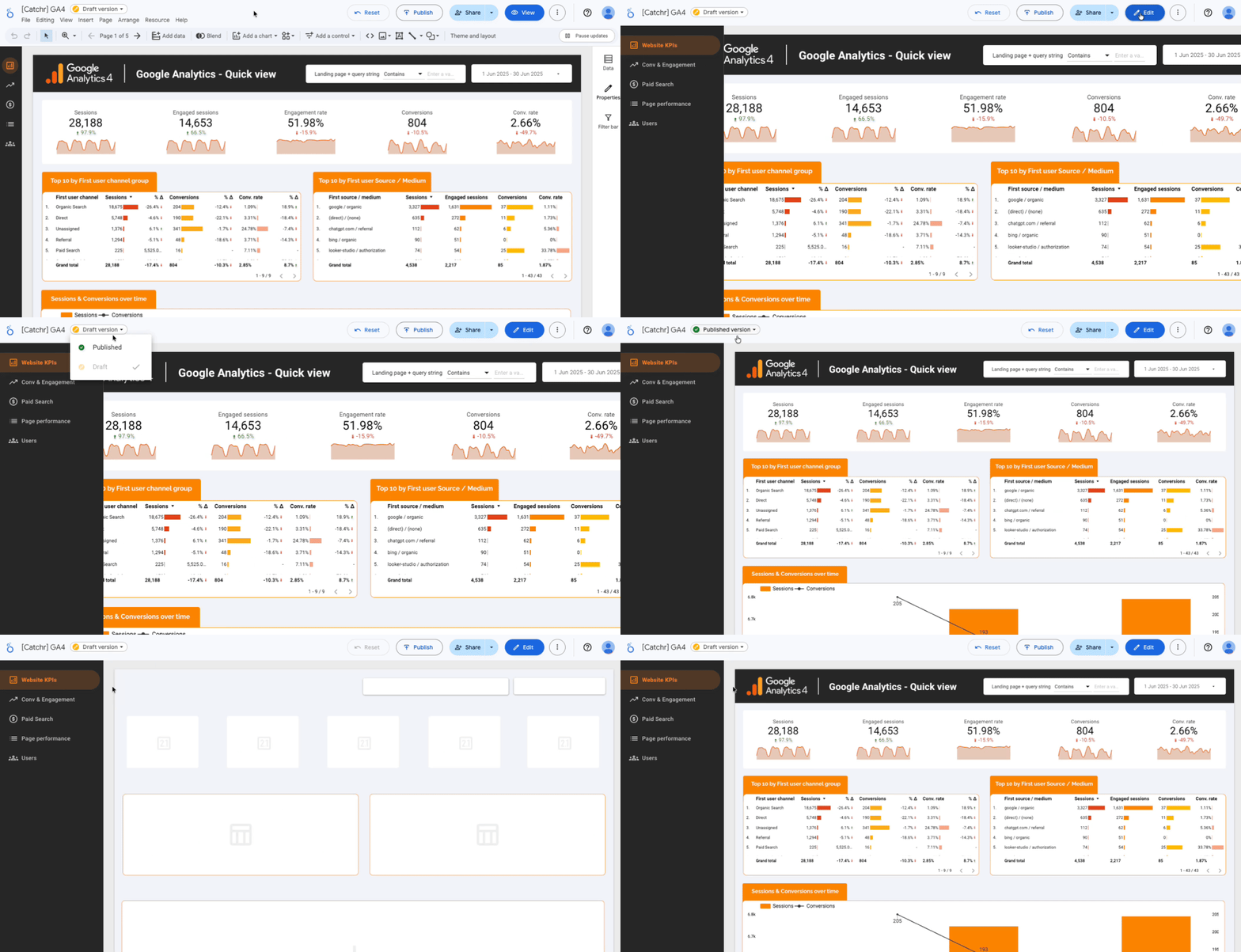
- Switch the report to View mode.
- Use the version selector at the top.
- Select Draft version.
Publishing updates
Publishing is always a deliberate action.
.gif)
How it works
- If no changes exist, the Publish button is disabled.
- As soon as at least one change is made, the button becomes active.
- Clicking Publish applies all draft changes to the live report at once.
Viewers always see a complete and intentional version of the report.
Tracking and restoring previous versions of a report in Looker Studio
Looker Studio keeps a history of published versions.
Accessing version history
- Open the report in Edit mode.
- Open file menu.
- Select Version history.
A list of saved versions appears in chronological order.
.gif)
Using version history
From this view, you can:
- restore a previous version
- publish an older version again
- rename versions to mark milestones or releases
Important limitations
- Manual publication applies to the entire report.
- All draft changes are published together. Partial publishing is not supported.
- Viewers never have access to draft versions.
These constraints are intentional and keep the workflow predictable.
Conclusion
Manual publication turns Looker Studio into a controlled reporting system. Editors can work safely in the background, review changes in context, and publish only when the report is ready.
If your reports are actively consumed by others, enabling manual publication is a best practice. It helps maintain trust, clarity, and consistency across all stakeholders.